How to share a plan and invite colleagues
Use a public report for someone who only needs to view a result. A colleague working on projects inside LogiStack needs an invitation to the company workspace. A report link does not grant project editing rights.
In this article
Create a link to the correct version
- Open the calculation or accepted correction you intend to share. Check its name, fleet and unplaced cargo.
- Click Share report.
- Choose Public link lifetime from the periods offered.
- Click Generate.
- Open the intended report version, check its contents and click Copy.
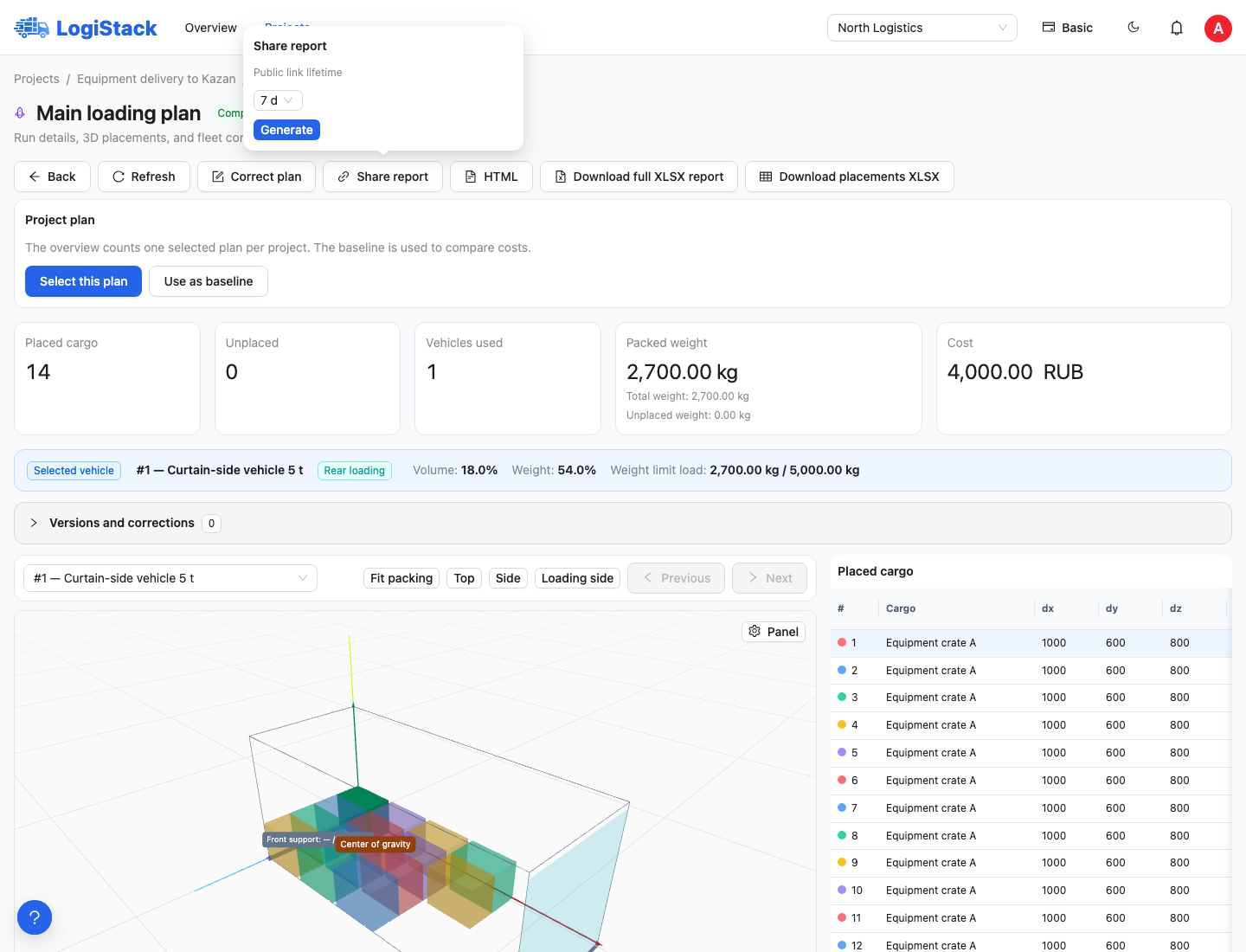
Choose the public link's lifetime in Share report.
With or without prices
| Version | Typical recipient |
|---|---|
| Report with prices | A colleague or customer who needs the plan's cost |
| Report without prices | A warehouse, driver or contractor who needs the arrangement without financial data |
Check the version immediately before copying its link. The report without prices still contains shipment and cargo information; hiding costs does not make that information private from the link holder.
Expiry and revoking access
Once links are generated, the button becomes Report link. The panel shows Active until. A public link opens without signing in to your workspace. Share it only with the intended recipients.
When access is no longer needed, click Revoke both links. This revokes both public versions of the report. It does not remove files or screenshots already downloaded. Generate new links after expiry and share the current addresses.
After a correction
Accept the intended correction, open the corrected plan and share its report. An older link should not be assumed to update automatically: it belongs to a specific result. Include the date and agreed alternative's name when sending it.
Inviting a colleague to work
Open Settings → Team members. Invite a colleague using their email, choose a role and assign projects. You can share an invitation link with the code prefilled. The employee joins the existing company rather than creating a separate shipment in a personal workspace.
Does a report recipient need to register? Not for an active public link. Use an employee invitation for editing, project history and ongoing work in the company.
The link does not open? Check its expiry, revocation state and address. For an offline document, download the report as a file.
Report language and colleague access
HTML reports have a separate RU / EN / 中文 switch. Before sharing, open the selected public version and check its language and whether prices are shown. Report language and application language are separate display settings.
An already registered colleague can also accept an invitation through Inbox. Use invitations for ongoing collaboration rather than sharing your password.