How to download and check a report before sharing
LogiStack provides a report for viewing and spreadsheets for further work. Download from the intended result page so the file matches the agreed version.
In this article
Choosing a format
| Button | Purpose |
|---|---|
| Open HTML report in a new tab | View the prepared report in a browser |
| Download full XLSX report | Work with the complete spreadsheet export in Excel or a compatible editor |
| Download placements XLSX | Obtain a separate table of cargo placements |
| Share report | Provide access by link, including a version without prices |
Calculation-list actions may use shorter labels: HTML report, Full XLSX and Placements XLSX. On narrow screens, open the row actions menu.
Before downloading
- Confirm that the intended project and calculation are open.
- If you used corrections, open the accepted corrected plan.
- Check Unplaced. For a partial result, tell the recipient which cargo remains outside the vehicles.
- Check fleet composition and prices. Do not present a partially known amount as the price of the entire shipment.
- Click the required format and wait for downloading to finish.
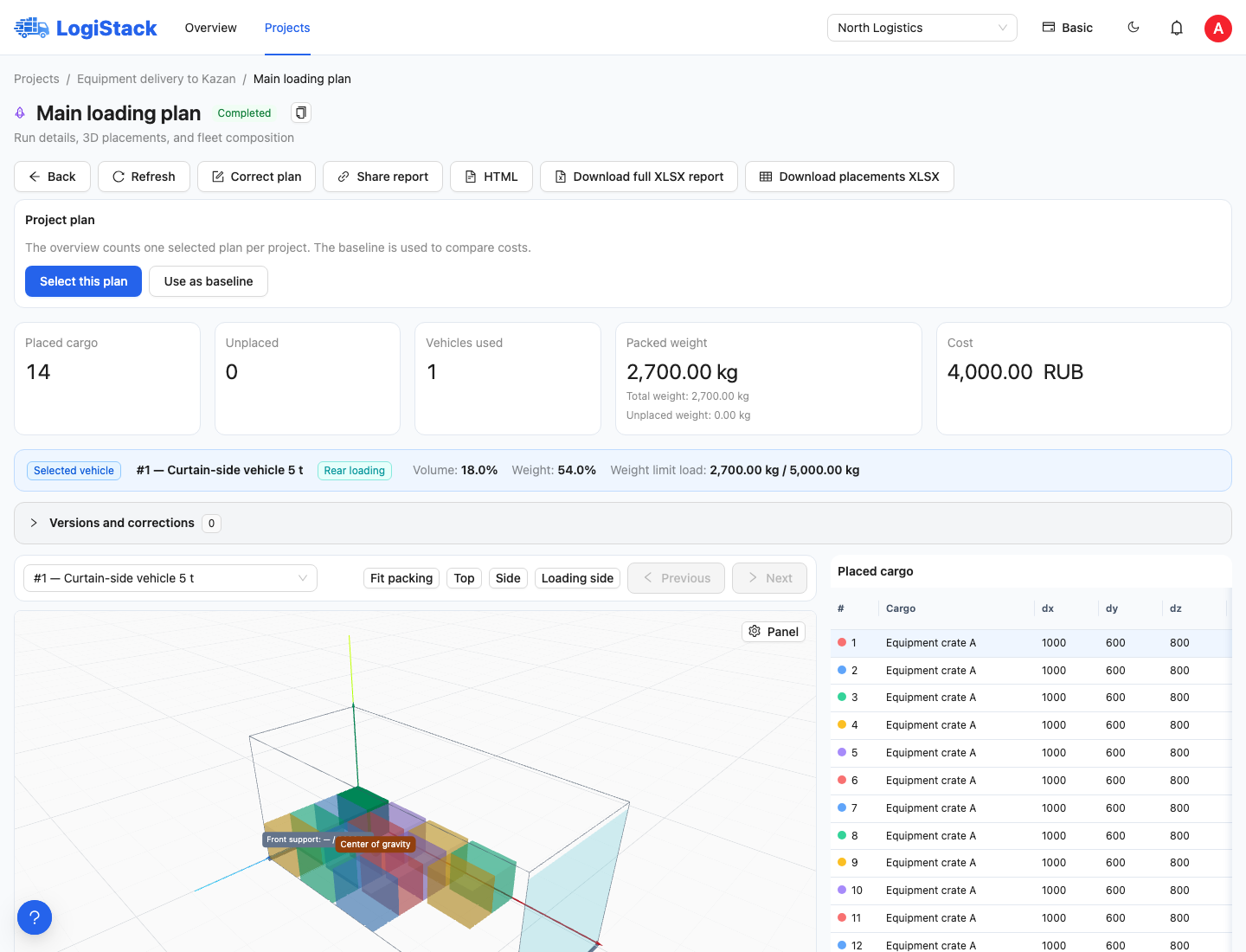
HTML and XLSX buttons appear at the top of the result. Check calculation name and version before downloading.
Before sending to the recipient
Open the downloaded file yourself. Verify recognisable cargo names, piece counts, vehicle counts and the chosen version. For a warehouse recipient, make sure the vehicle numbers, cargo labels and loading order are clear.
Give the file a clear name, such as “Order 218 — plan dated 18 September — approved”. Editing dimensions or quantities in the spreadsheet does not update LogiStack. An export is a separate document; change the source task in the project and calculate again.
Frequently asked questions
Will a downloaded file change after a correction? No. Export again and explicitly replace the document used by the shipment participants.
Why did the HTML report not open? Return to the application and open it again from the current result. For a public link, also check expiry and whether access was revoked.
Can one file represent several alternatives? Share one agreed alternative or give every file a distinct name. Otherwise, a warehouse might use an older arrangement even after a different plan is accepted in the application.
Historical data and older reports
Modern calculations use source data preserved at launch; later edits to the project catalogue should not substitute different parameters for that shipment. “Source data was preserved at calculation time” confirms this source is available.
Older calculations may warn: “Historical facts are unverified; some parameters come from the current catalogue.” Check contents, dimensions, weights, vehicles and prices before sharing. Do not assume today's values were valid for the earlier shipment. If necessary, calculate again using verified inputs.
The full XLSX has separate sheets for the summary, vehicles, loading plan, exact placements, unplaced cargo and axle loads. Unknown fields may contain explanations or dashes; do not replace them with zeros. The placement table contains coordinates and identifiers, not a new cargo-import task.
Export availability and language
If HTML or XLSX is unavailable, check the button's tooltip, plan features and selected company. Viewing a report requires result access; a public link works separately until expiry or revocation.
HTML supports RU / EN / 中文. XLSX sheet names and explanations currently remain in Russian, while technical CSV fields use English. Changing the application language does not translate them. Check that the recipient understands the format.