How to define vehicles, doors, quantities and prices
On the Vehicles and cost tab, each row describes a vehicle type. Quantity specifies how many such vehicles are available. Use separate rows for different bodies, prices or constraints, even if the vehicles share a common name.
In this article
Adding a vehicle type
- Click Add vehicle or Create from template.
- Check the name and internal dimensions. A built-in template is a starting point, not confirmation of a particular vehicle's specifications.
- Enter payload capacity, available quantity, loading method and price.
- Configure overhangs, tare weight and axles if needed. Click Create.
- Save edits to existing rows with Save changes.
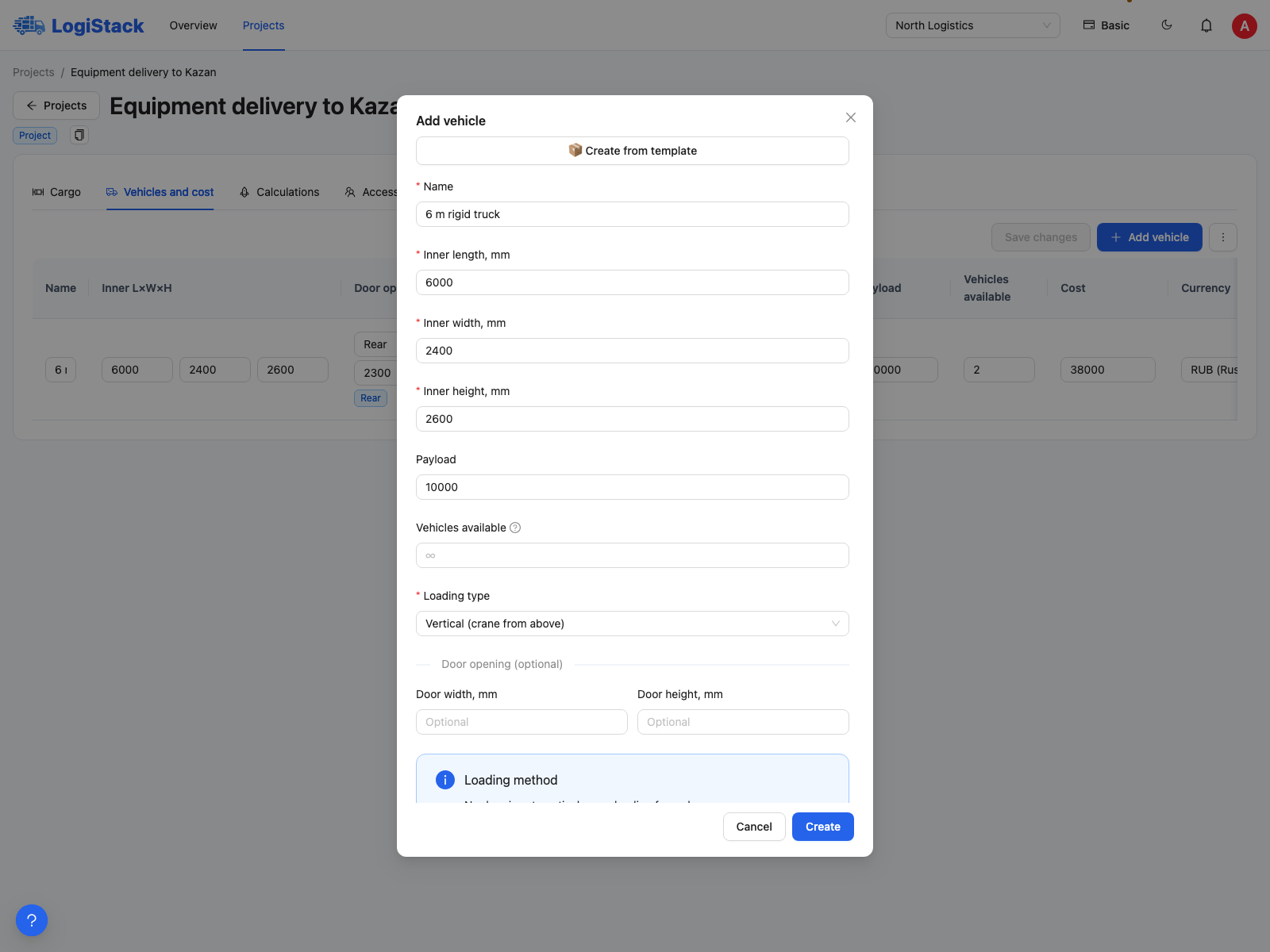
The first part of the vehicle form contains internal body dimensions and payload capacity. Quantity, loading method and price are below.
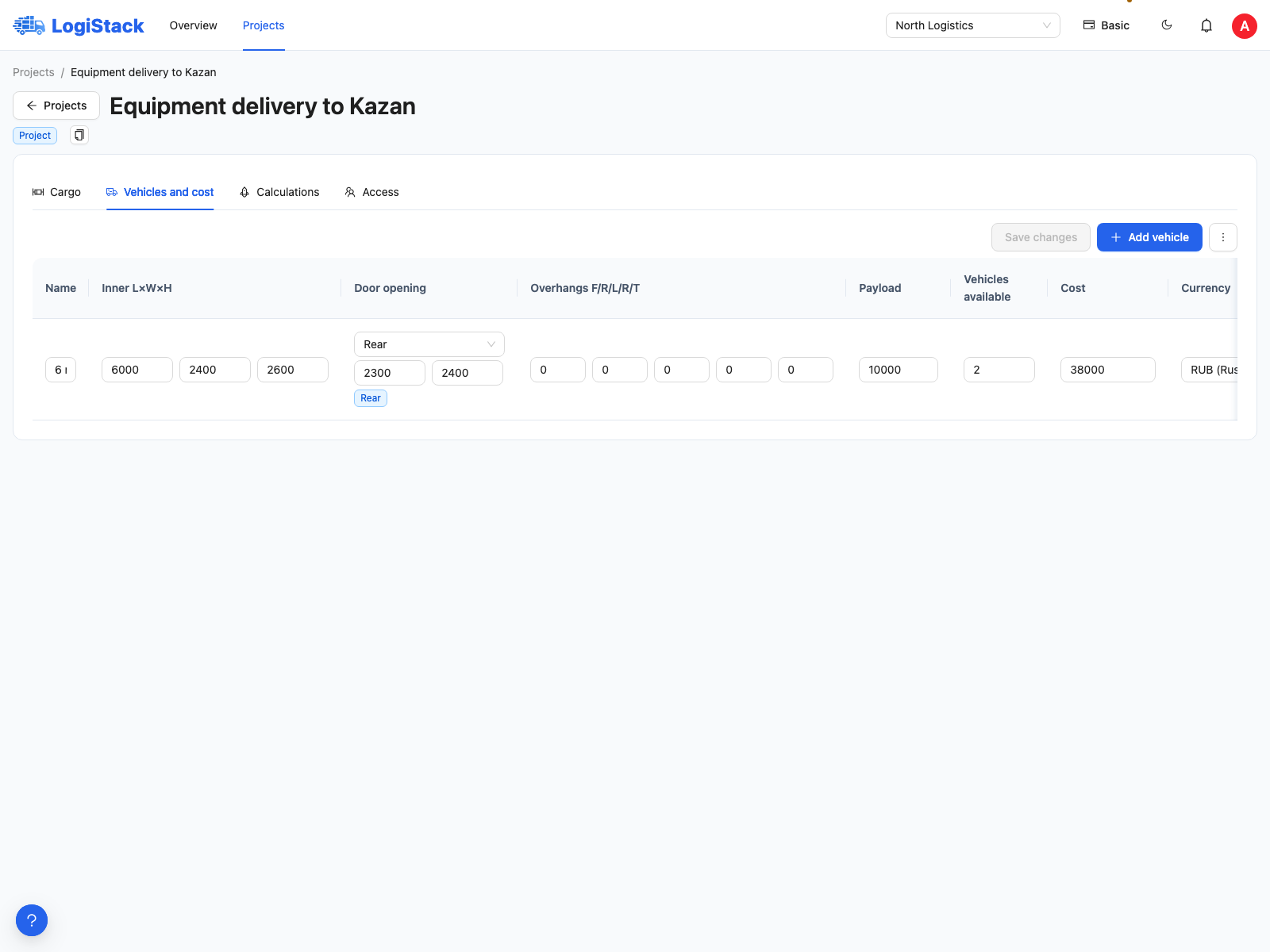
A saved vehicle row shows the loading method and both door dimensions. Click Save changes after editing.
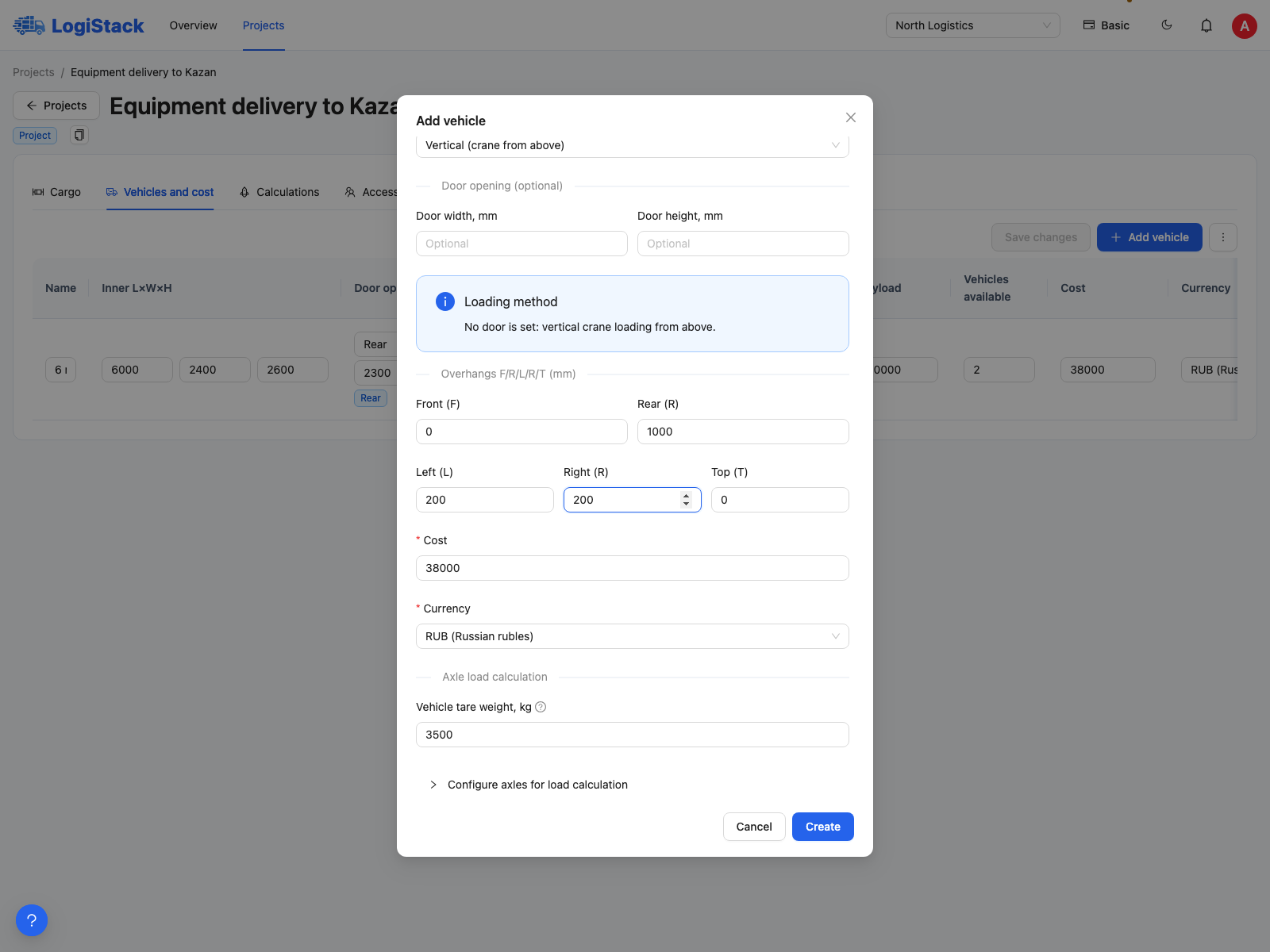
Cost and currency appear below the overhang fields. Enter the actual price per vehicle for your shipment.
| Field | Meaning | Blank / 0 |
|---|---|---|
| Internal length, width, height, mm | Usable body space | Dimensions must be positive |
| Payload capacity | Permitted cargo weight, kg, excluding tare weight | 0 provides no positive weight limit. Enter the actual limit for a real shipment |
| Available vehicles | Physical limit on the number of this vehicle type | Blank: unlimited quantity; 0: none available |
| Cost | Price per vehicle for this shipment | 0 is saved as a free vehicle, but the current calculation form requires a positive price |
| Currency | Currency of the entered price | Choose it explicitly and compare quotations on equivalent terms |
Loading method and door opening
Rear and Side require both Door width, mm and Door height, mm. Cargo must pass through the opening in its selected orientation. Enough space inside the body therefore does not guarantee it can be loaded.
With Vertical (crane from above) loading, access is from above. Do not select it merely to bypass a narrow door on a closed body. One filled door dimension and one blank is incomplete: correct both fields.
Example with a limited fleet
Two large vehicles and one small vehicle are available. Enter 2 and 1 respectively in Available vehicles. Blank fields allow the search to use more vehicles of those types. Neither the selected objective nor additional optimisation increases an explicitly specified quantity.
Why the system selects an unexpected vehicle
Check price per vehicle, the fleet selected for the calculation, door dimensions and available quantities. Identical genuine prices are valid: do not alter them merely to remove an identical-price hint. If templating is enabled, compare a calculation without it. For axle calculation, configure the axles separately.