How to create a support ticket and continue a conversation
Support stores the current user's tickets and their conversations. Continue an existing ticket for the same issue to keep details and replies together.
In this article
Create a ticket
- Open Support from the profile menu or the Help button in the lower-left corner.
- Click New ticket.
- Enter a brief subject, such as “Calculation result does not open”.
- Describe your action, expected outcome and actual error. Include a calculation ID or link, or for a payment, the date, amount and invoice number if available.
- Choose a priority reflecting the issue's impact and submit the ticket.
The conversation opens after successful creation. If an error appears, check the ticket list before submitting again. Do not include passwords, confirmation codes or complete payment-card details.
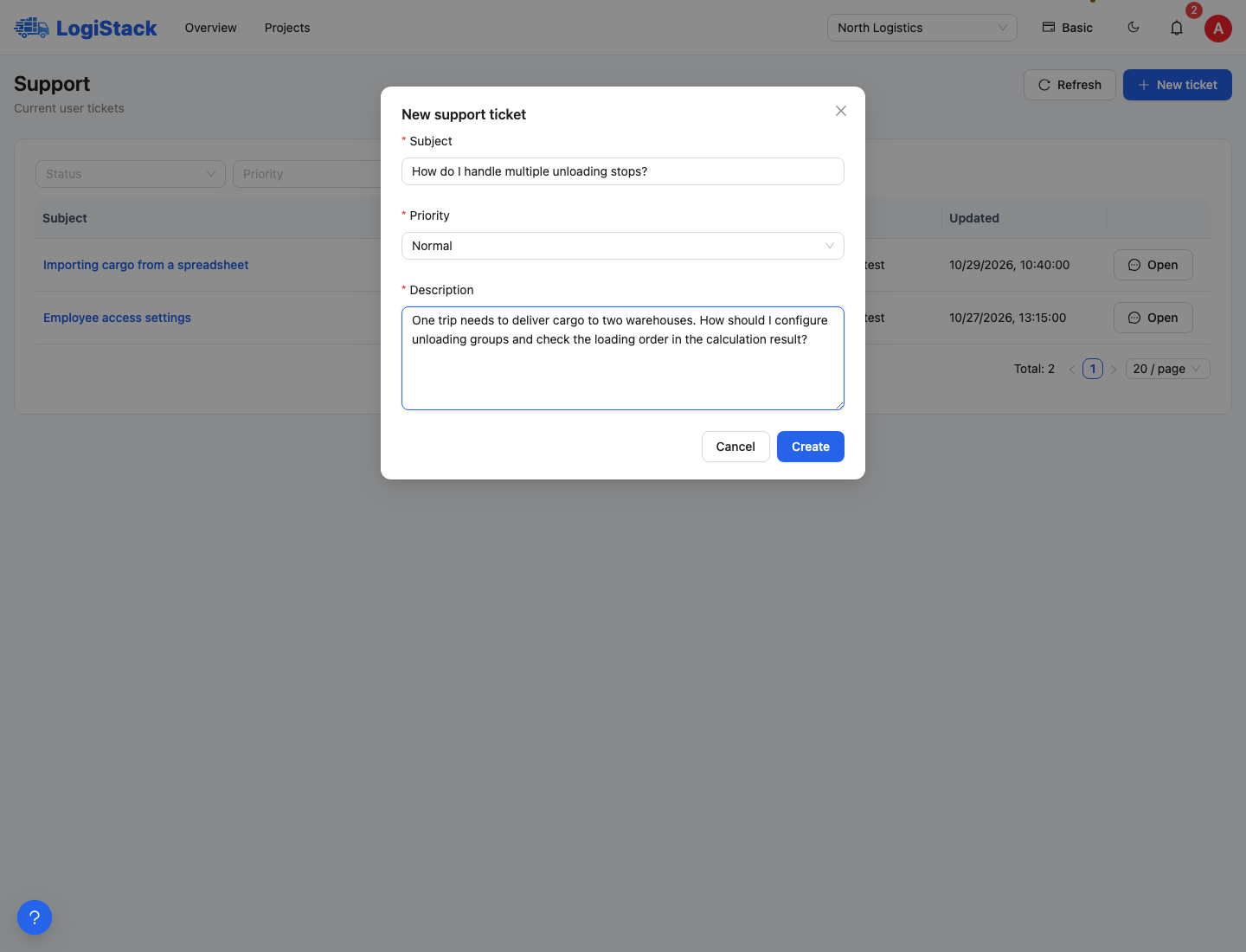
New ticket: subject, priority and problem description. The form uses educational example data.
Find your ticket
The list offers search, status and priority filters, refresh and pagination. Click the subject or Open; on a phone, use Chat. If no rows appear, clear the filters and check which profile is signed in.
These are your user's tickets, not the entire company's list. The workspace selected at creation associates the issue with the relevant company.
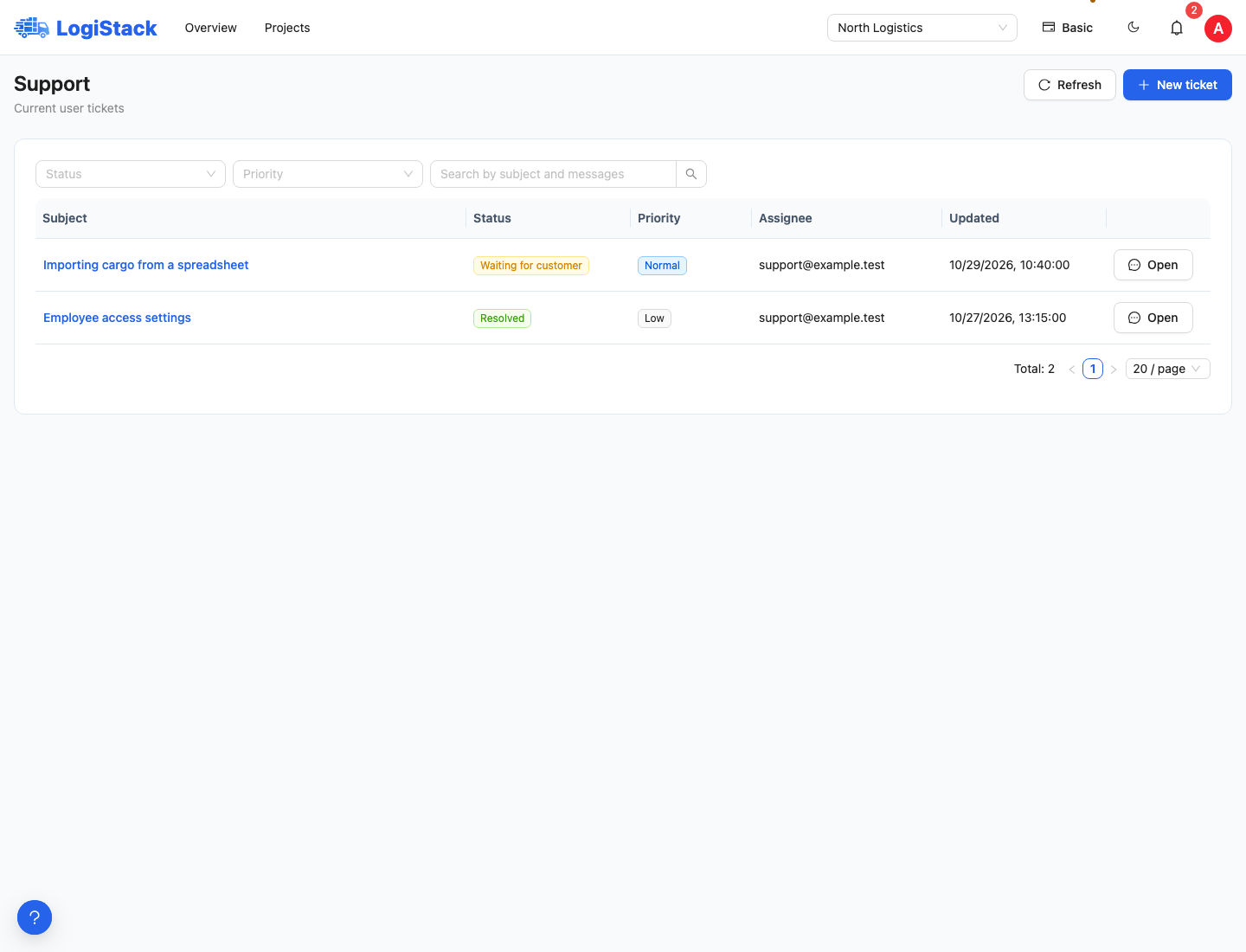
Your tickets: search, statuses, priority and opening a conversation.
Reply in the conversation
- Open the required ticket.
- Read the latest messages and current status.
- Under Reply, enter your message and click Send.
- Wait for confirmation and for the message to appear in the history.
Closing the conversation panel returns to the list without deleting the ticket. You can reopen it later. Find related notifications in Inbox.
Understanding statuses
| Status | What to check |
|---|---|
| New / Open | The ticket is registered or being handled. |
| Waiting for customer | Read support's question and provide the requested details. |
| Waiting for support | The issue awaits further handling by the support team. |
| Resolved / Closed | Read the final response and resolution details. |
Priority indicates importance; it does not establish that an issue is resolved. If a reply or status appears unchanged, click Refresh and reopen the conversation.
If you cannot sign in
Use access recovery. If that does not help, email support@logistack.ru, including your profile email and a description of the issue. Do not create another profile solely to submit a ticket.