How to use Inbox and accept invitations
Inbox collects company invitations, system notifications and support-related messages. Reading a message and completing its required action are recorded separately.
In this article
Open Inbox
- Click the bell at the top of the application, then open the complete inbox list.
- Choose Action required for invitations awaiting a decision.
- Use Unread, All, System or Tickets to find the required message.
- Click Refresh if the list may have changed.
An empty filter does not mean there are no messages. Open All and the next list page to find older notifications.
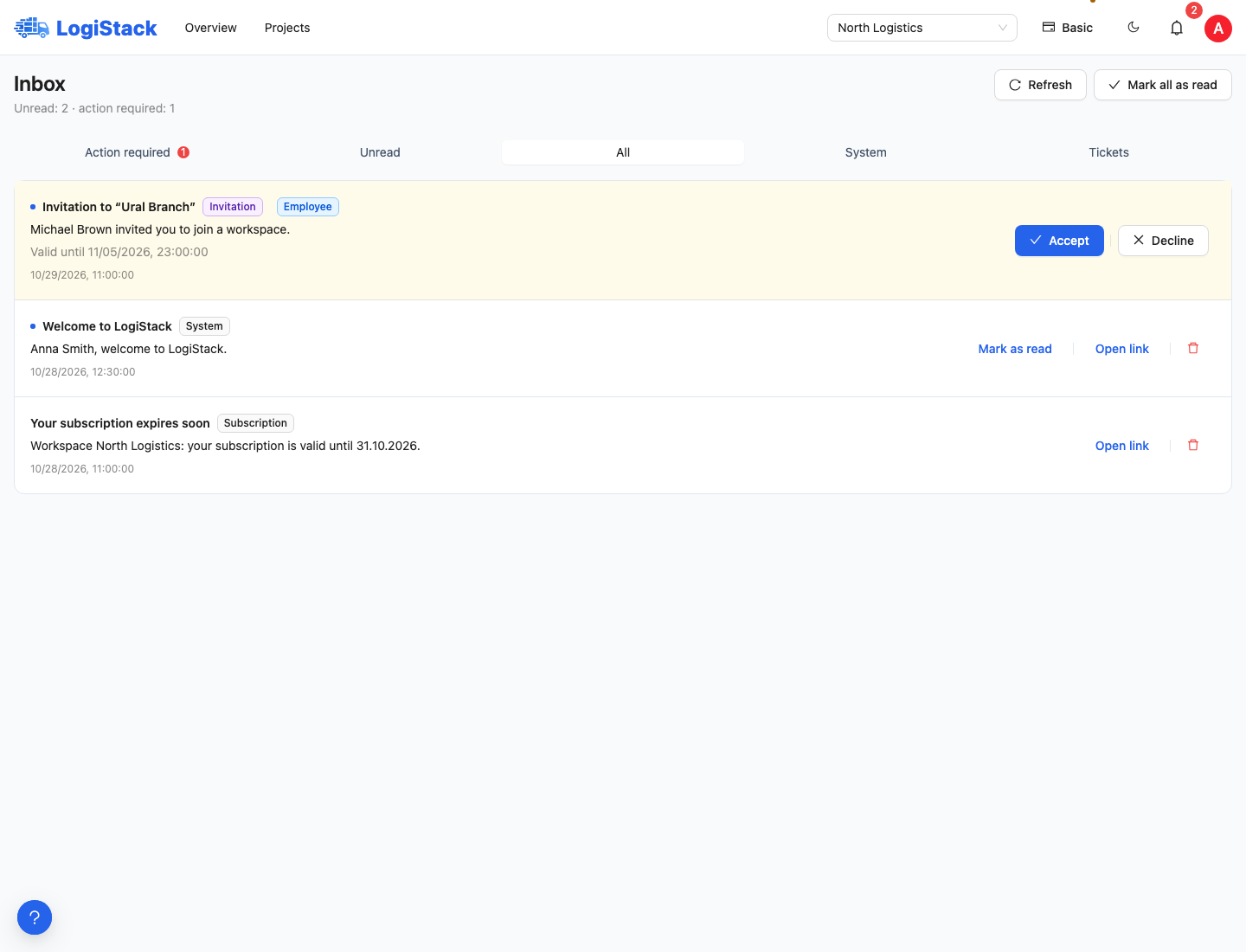
Inbox: filters separate invitations and notifications. Reading is not the same as accepting an invitation.
Accept a company invitation
- Sign in using the email to which the invitation was addressed.
- Open the invitation under Action required and check the company, inviter, role and expiry.
- Click Accept to join. If the invitation is not needed, choose Decline and confirm.
- After acceptance, check the current workspace and open assigned projects.
Acceptance does not require creating a separate company or buying a personal subscription. Workspace roles and project assignments determine access. A colleague without a profile first uses employee registration by invitation.
Reading and acting are separate operations
Mark all as read clears unread indicators without accepting invitations or making other required decisions. An invitation can remain under Action required after being read.
A ticket notification links to the conversation. Continue in the support ticket itself, so the message history stays together.
If an invitation cannot be accepted
- Different email. Sign in as the recipient or ask for a correctly addressed invitation.
- Expired or revoked invitation. Request a new invitation from the company administrator.
- Already accepted. Check the workspace list and switch to the relevant company.
- No projects after acceptance. Ask the administrator to check assignments and your role. Membership alone does not give an employee access to all projects.
- Loading error. Refresh the list and check the connection; create a support ticket if it recurs.
To invite someone from the company side, see the owner and administrator instructions.