How to register a company or join as an employee
First decide whether to create a separate company workspace or join your colleagues. This determines which fields are required and which projects appear after signing in.
In this article
Registering your company
- Open the registration page. Leave I am a company employee unchecked.
- Enter a work email and phone number. Email is used for signing in, invitations and password recovery. Use an address you can access.
- Enter your full name so colleagues can recognise you. Choose a password of at least eight characters and enter it again.
- In the Company name field, enter a recognisable name for the company workspace. This is not your first shipment’s name: you create projects separately.
- Enter the required company or sole proprietor's INN (Russian taxpayer ID): 10 digits for an organisation or 12 for a sole proprietor. The checksum is validated, so a random number will not work. Invited employees do not provide this company identifier.
- Read the personal-data processing terms, confirm consent and complete registration.
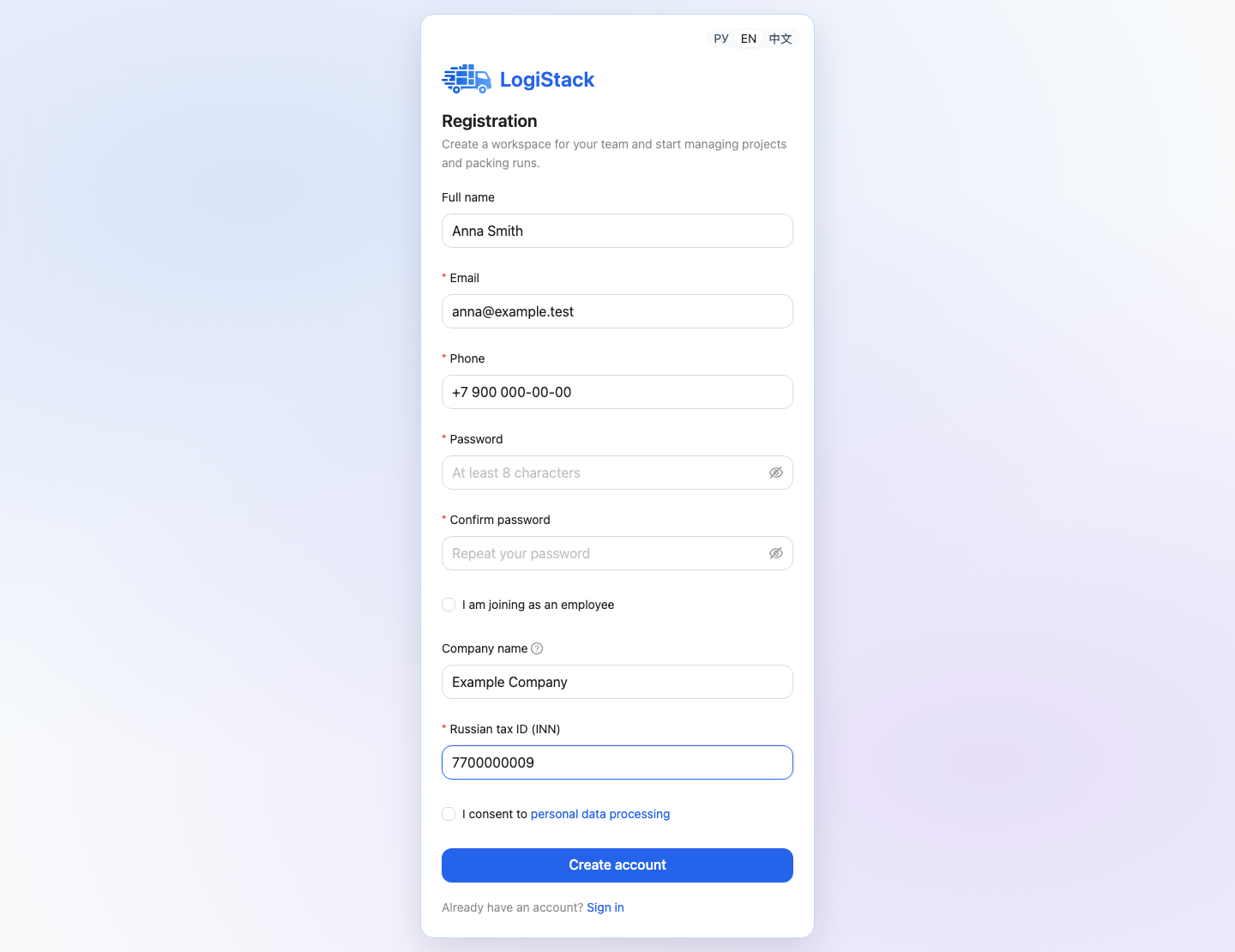
Company registration: a valid INN is required and its checksum is checked. Invited employees do not enter company details.
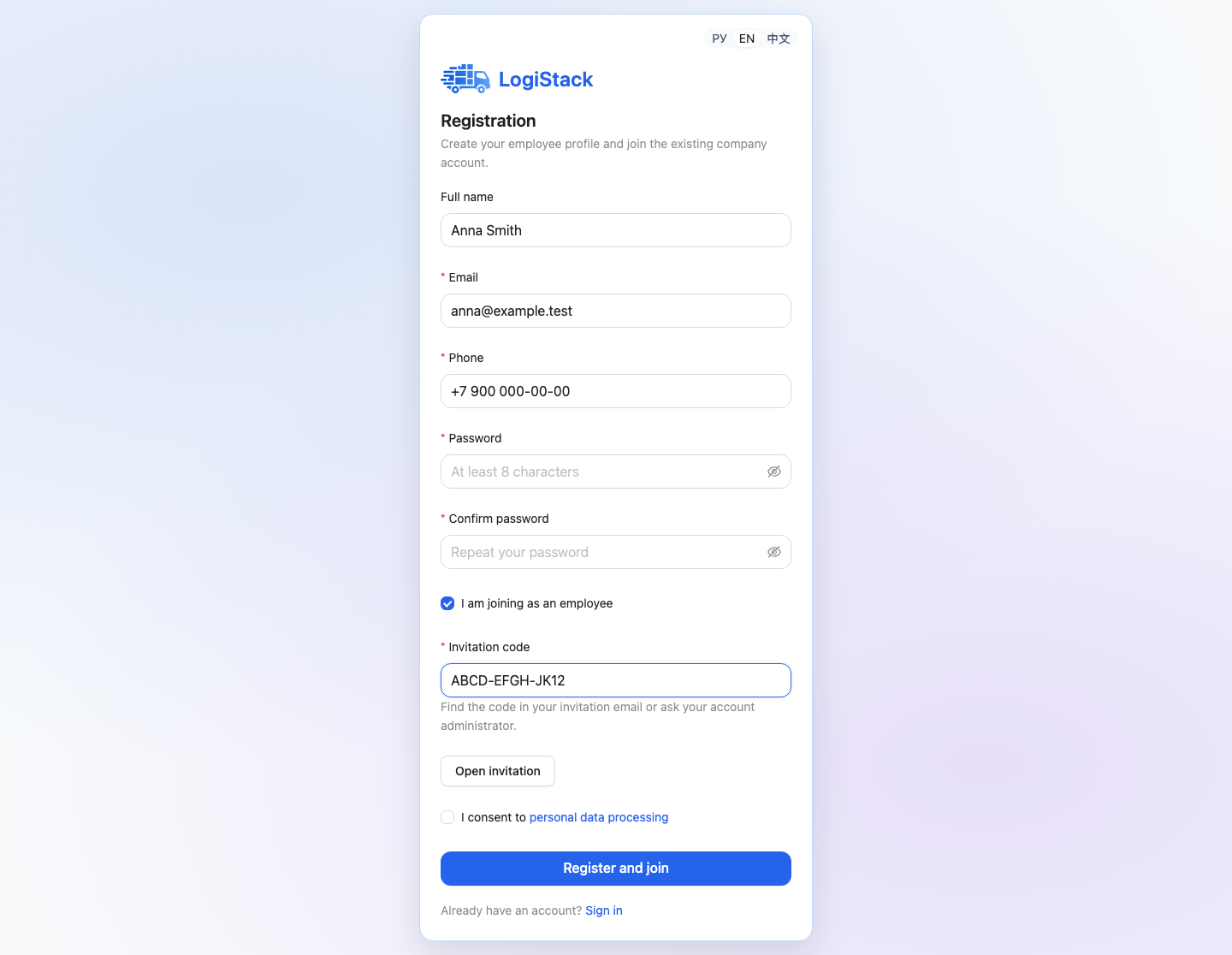
Employee registration replaces company details with a required invitation code.
Registration creates your workspace with a starting plan. Check its validity and available capacity under Subscription. Then proceed to your first calculation.
Registering as an employee
Ask the company owner or administrator to send an invitation to your email. Open its link to prefill the invitation, or enable I am a company employee and enter the invitation code from the email.
Click Open invitation, check the company and role, then enter your phone, name and password. Choose Register and join. Company name and INN are not entered in this mode. Employee registration cannot finish without a valid invitation.
Frequently asked questions
Can the company name be left blank? Yes. A default name is used, which an owner or administrator can later change in Settings → Workspaces.
I already have a profile. Do not register again. Sign in using the invitation's email address and accept it.
The email or phone number is already in use. Try signing in or resetting your password. Do not create another profile merely to join a company.
An email verification step appeared. Enter the code from the latest email or follow its link. If verification is not requested, continue working.
Registering through a plan offer link
A special registration link may display a plan and access duration above the form. Check these terms before completing registration. If email verification is required, that access period begins after verification.
“This link is invalid, disabled or already used” means its offer is currently unavailable. Request a new link or select Standard registration. An employee invitation uses the existing company workspace's subscription; a new-plan link does not replace an invitation.
After signing in, open Subscription and check dates and allowances. First-payment rules following temporary access are explained in the link-access section.