How to switch and manage workspaces
Your profile represents you: your email, password and personal settings. A workspace represents a company: its projects, team, subscription and allowances. One person can belong to several workspaces using the same email.
In this article
Open the correct company
- Open Settings → Workspaces.
- Find the company and click Select. The Current label identifies the workspace you are using.
- Check the workspace name before creating projects, inviting colleagues or paying for a plan.
- To open that company automatically next time you sign in, click Open on sign-in. This is separate from switching the current workspace; switching does not change the default.
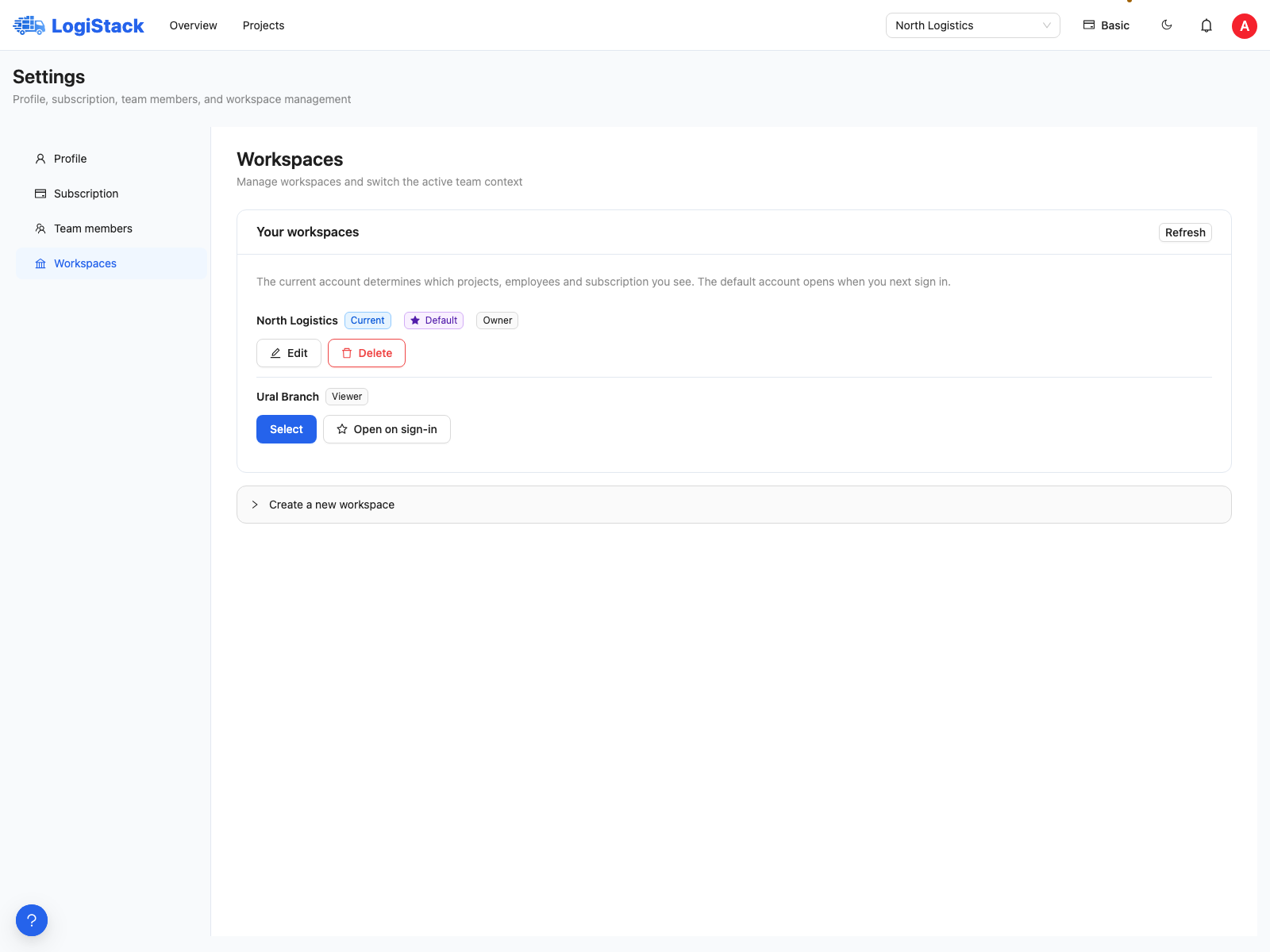
The current and default workspaces are separate settings. They are the same company in this example.
Desktop users can also switch at the top of the application. Projects, subscription details and team membership change with the workspace. Another company's data is retained; you are simply viewing a different workspace.
Rename or add a workspace
An owner or administrator can choose Edit for the workspace, enter a clear name and save. Distinct names help when working with several teams.
New workspace is for another company or independent business area with separate projects, team and subscription. Ask for an invitation to join colleagues. Creating another workspace does not connect you to their projects or transfer their paid subscription.
Leaving a team
If you no longer work in an invited workspace, open Team members and choose Leave workspace. You lose access to its projects but retain your personal profile and other workspaces. Rejoining requires another invitation.
An owner must first transfer ownership to another member. In the team list, choose Transfer ownership and confirm using the exact workspace name. The previous owner becomes an administrator.
Checks before deleting a workspace
Only an owner can delete a workspace. Deletion is irreversible: projects, cargo, vehicles and calculations are removed, and employees lose access. Use Leave workspace to leave another company's team, or Select simply to switch companies.
Why do I see No workspaces or unexpected projects? Check your profile email, selected workspace and invitation status. Ask the company's administrator to check access if it is missing. Do not create a replacement workspace before checking the invitation.
Working after switching
On the Overview page, you see accessible projects and selected plans in the current workspace. Invitations and personal messages appear in Inbox. If another company is selected after accepting an invitation, check the workspace before creating a project or arranging payment.