How to prepare cargo and vehicles
Before calculating, complete two project tabs: Cargo and Vehicles and cost. These define the conditions for your shipment. A product or vehicle name identifies a row, but does not tell the system its dimensions, weight or handling requirements.
In this article
What to prepare
| Input | Source | What to check |
|---|---|---|
| Cargo-piece dimensions and weight | Measurements of the piece as shipped | Include the box, pallet and protruding parts |
| Quantity | Shipment list | Count cargo pieces, not products inside a box |
| Stacking and handling conditions | Cargo and packaging requirements | Whether it may rotate, stand on other cargo or carry a load on top |
| Vehicle parameters | Carrier's specifications | Internal dimensions, door opening, payload capacity and available quantity |
| Price | Carrier's quotation | The price per vehicle on comparable terms |
Enter the project inputs step by step
- Click Add cargo. Combine only identical pieces in one row: dimensions, weight and handling rules must match.
- For a long list, use Import in the three-dot menu. Try a small file first and check the resulting quantity.
- If the shipment has several unloading stops, create Unloading groups and assign them to cargo. Warehouse names in item descriptions do not set the unloading order.
- On the vehicle tab, click Add vehicle. Add every vehicle type actually available for this shipment.
- Enter each type's price and available quantity. If axle limits matter, configure the axles separately.
- After editing the table, click Save changes. Then open Calculations.
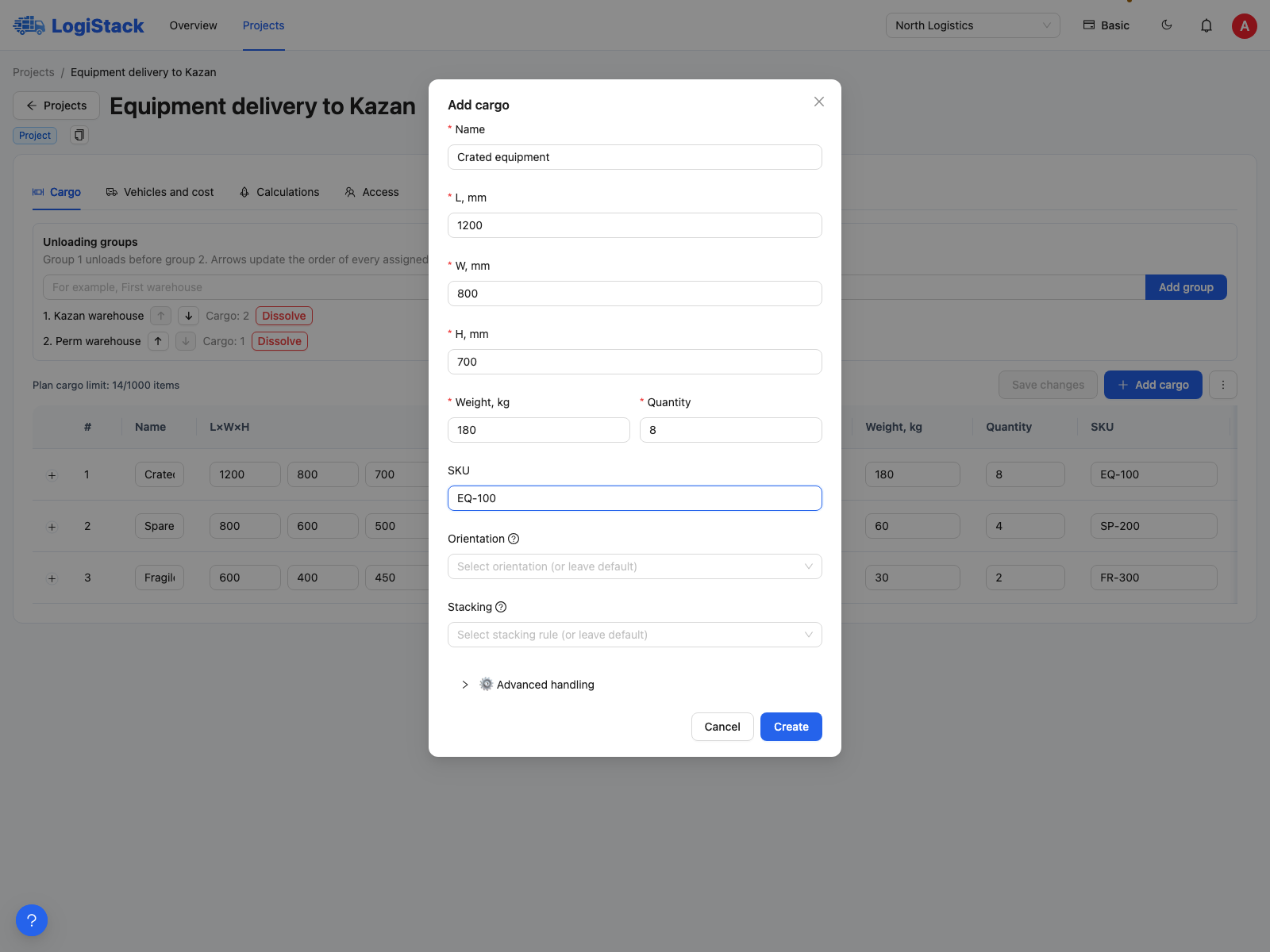
Start with the parameters of one cargo piece; enter the quantity separately.
Quick pre-launch check
For ten identical pieces weighing 80 kg each, enter 80 as the weight and 10 as the quantity; the row's total weight is 800 kg. Entering 800 in the weight field produces 8,000 kg. Enter a length of 1.2 m as 1200 mm, not 1.2.
If settings cannot be edited, check your project permissions. Some actions may also be blocked during an active calculation. Do not create duplicate rows instead of saving edits: wait for the operation to finish and refresh the list.
Where to find detailed guidance
- Entering dimensions, packaging and weight.
- Fragile cargo, top-load limits and support area.
- Vehicle dimensions, doors, quantities and prices.
- Configuring axles.
If an action is unavailable
Project editing rights and subscription features are checked separately. For example, export may be disabled by your plan even when you can edit cargo. Plans can also limit cargo rows, vehicle types and concurrent calculations. Read the explanation beside the action and check the selected workspace's subscription.