How to obtain an invoice and pay for a plan by bank transfer
Workspace owners and administrators can create an invoice for a company or sole proprietor when this method is available. It belongs to the selected company and plan; creating it does not confirm payment.
In this article
Check the workspace and terms
- Choose the correct company and open Settings → Subscription.
- Choose a plan and available period, or click Renew for the current plan.
- Check amount, currency and period. Invoices are available for positive RUB amounts when bank-transfer payments are enabled.
- In the payment form, choose invoice creation for a company or sole proprietor.
Enter buyer details
| Field | What to enter |
|---|---|
| Buyer: company or sole proprietor | The payer's full legal name. |
| INN (Russian taxpayer ID) | A valid INN: 10 digits for a company or 12 for a sole proprietor. |
| KPP (Russian tax registration code) | A company's nine-digit KPP; sole proprietors may leave this blank. |
| Buyer address | The payer's complete address. |
- Check buyer details and the selected plan's terms.
- Confirm agreement to the data-processing terms.
- Click Create invoice and wait for confirmation.
Correct any field identified by an error. After a connection error, check invoice history before creating more documents for the same payment.
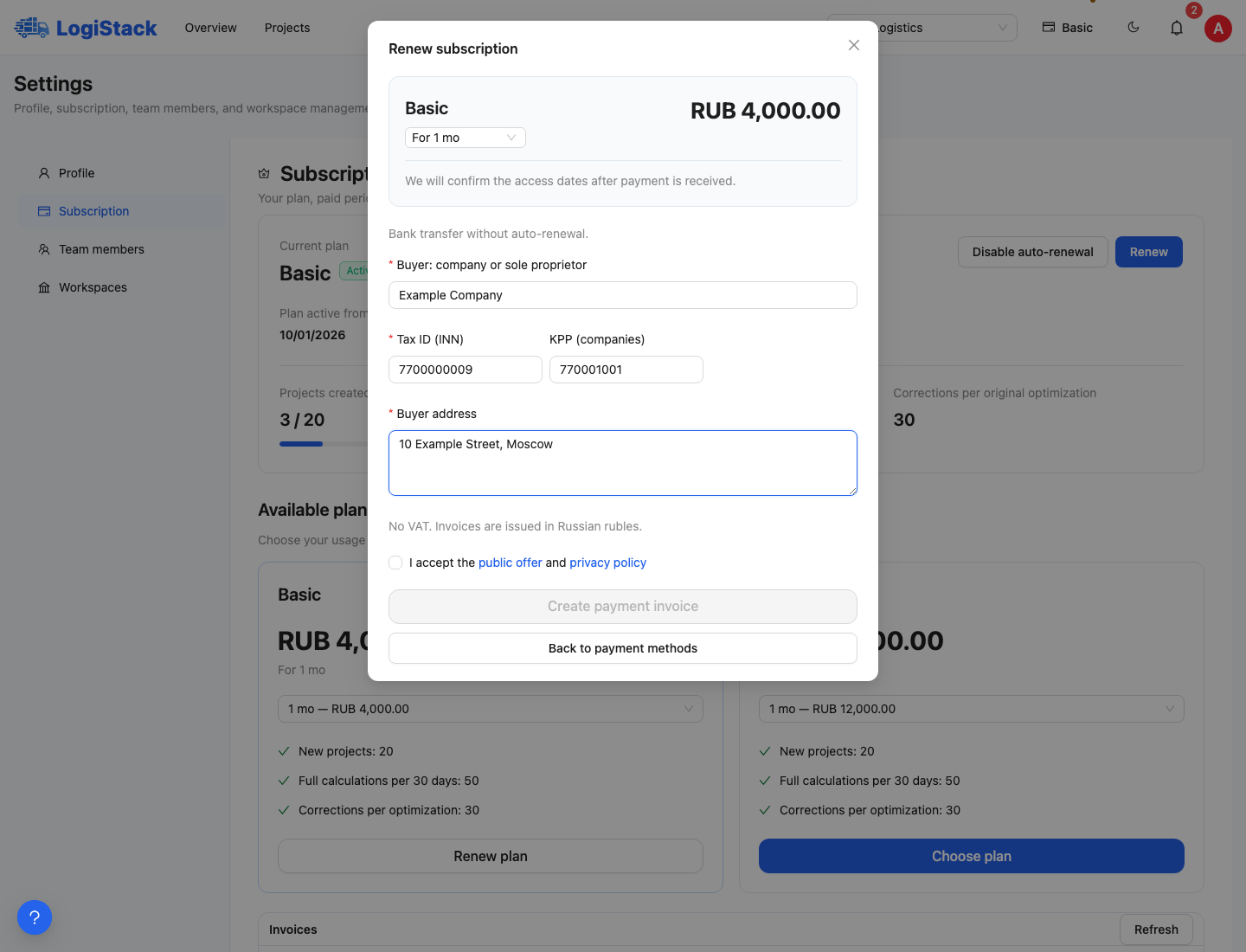
Creating an invoice: company or sole-proprietor details, selected plan and agreement to terms.
Download the PDF and arrange payment
Open the created document and click Download PDF. Check the number, buyer name, INN/KPP, plan, period, amount and recipient details. Invoices are issued in Russian roubles, without VAT.
Use the payment details and reference from the document. The reference and bank details are also available in invoice details inside the application. Include the invoice number to identify the payment and selected terms.
Finding an existing invoice
Under Subscription, find Payment invoices. Open the required number, check details and download the PDF again if needed. Click Refresh if the list fails to load.
Changing a project name or interface language does not create a new invoice from an existing document. Check the number and period before sending it to your accounts team.
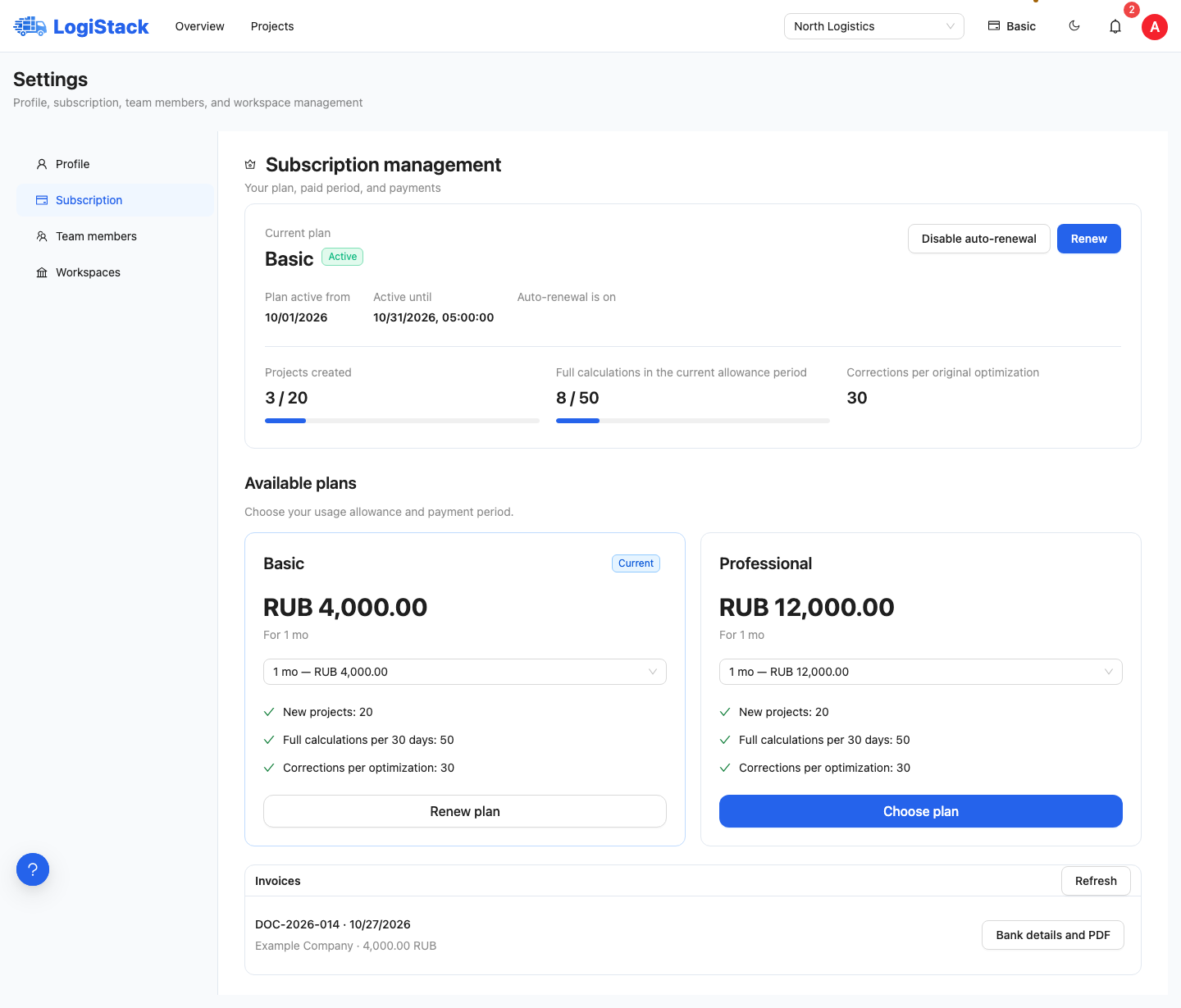
Invoice history for the selected workspace: open a number and download its PDF again.
When the plan becomes active
Creating or downloading a PDF does not establish receipt of funds. Access dates are confirmed after payment. Rules differ for paid-plan renewals, plan changes and first purchases after temporary access; check final dates in the subscription.
If the transfer was made but the subscription has not updated, contact support with the invoice number, transfer date and amount. Do not pay again solely because confirmation is delayed.
For other payment methods and period rules, see the subscription guide.