How to describe a change to AI
The AI assistant turns a request into a modification of a finished plan. Describe an observable outcome: which pieces, which vehicle, what to preserve and what may change. “Make it better” does not specify whether cost, height, density or cargo access matters most.
In this article
Workflow
- Open the result, select the current vehicle and click Correct plan. Select pieces in the table if needed.
- Enable AI assistant and click Suggest change beside it to open the command form.
- Select Change scope.
- Fill in Command for AI. For a transfer, choose Target vehicle.
- Check permissions for another vehicle, unplaced cargo and the overhang restriction.
- Click Suggest change in the command form. Read how the request was interpreted and wait for the alternative to be checked.
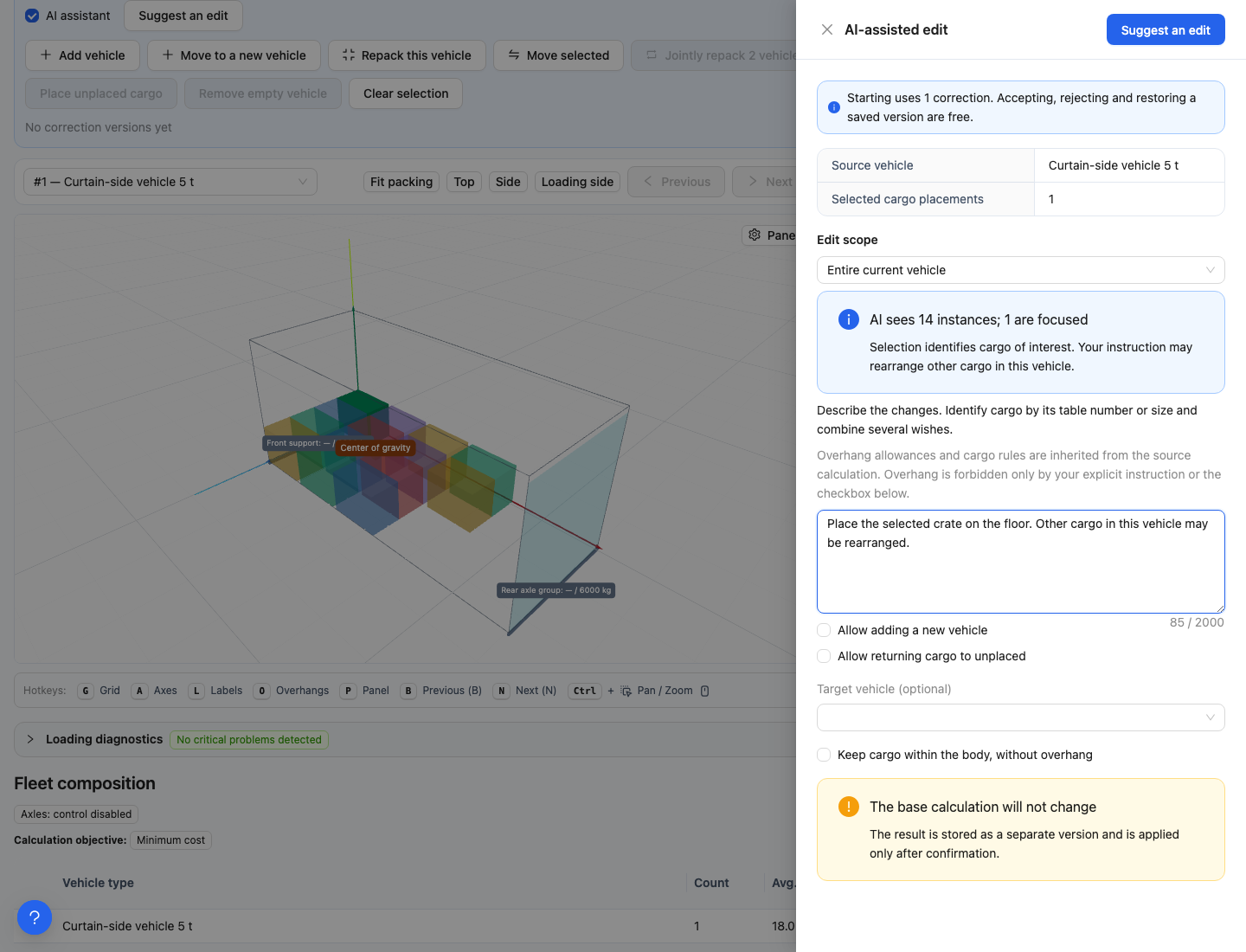
An example AI command. Specify the change and separately permit a new vehicle or returning cargo to unplaced cargo where acceptable.
Understanding the change scope
| Scope | What is allowed |
|---|---|
| Entire current vehicle | AI may move other pieces in this vehicle if your request requires it. Selection identifies the pieces of interest. |
| Selected instances only | Other pieces are visible to the assistant, but their coordinates and rotations are fixed. |
If transferring a large crate requires moving neighbouring pieces, the second option may be too restrictive. Choose the entire vehicle when that rearrangement is allowed.
Examples of clear commands
- “Put the selected crate on the floor. You may rearrange the other cargo in this vehicle.”
- “Move the selected pieces to the specified target vehicle. Do not add a vehicle.”
- “Lower the overall loading height while keeping all cargo in this vehicle.”
- “Place the selected cargo without overhang. If it does not fit, keep the original plan.”
You can identify cargo by row number or dimensions. For identical crates, selecting individual instances is more reliable: one item name may refer to several pieces.
Permissions are not enabled automatically
Allow adding a new vehicle permits additional vehicles within valid limits. Allow returning cargo to unplaced permits removing some pieces from the plan, but not deleting them from the project. Leave these off if the correction must preserve both the fleet and complete shipment.
Cargo rules and overhang allowances are retained from the original calculation. A general request for a denser arrangement does not prohibit all overhang. Use an explicit command or Place inside the body without overhang to require that.
Interpreting the response
Check Request conditions met and the before/after comparison. If clarification is requested, be more specific. No improvement found does not mean the plan was damaged: the original remains. If AI is unavailable, use manual correction actions.
Request fulfilment and physical validity are separate checks
After calculation, read both the AI response and the request check based on the resulting geometry. States include Request conditions met, Request partially fulfilled and Request not fulfilled. An arrangement may preserve cargo and satisfy physical constraints without meeting every preference.
Individual checks show before/after values: height, deviation from a target position, pieces not on the floor, overhangs or group compactness. Improving one metric does not improve every property of the shipment. Before Accept new version, check the relevant vehicles, unplaced cargo, price and every important preference.
Next: accepting or rejecting a proposal.
If the calculation is interrupted or the service fails: interruption and certain service errors return the attempt to the allowance. Clarification requests and unavailable AI also do not consume a completed correction. A finished search with no feasible placement counts as an attempt. Check the current balance in the correction panel.