How to invite an employee and configure access
An invitation connects an employee's personal profile to your company workspace. The colleague works in the shared team under that workspace's subscription; no separate personal subscription is needed.
In this article
Send an invitation
- Choose the correct company and open Settings → Team members. Owners and administrators can manage invitations.
- Under Invite a team member enter the colleague's email. If already registered, use the email on their profile.
- Choose workspace role. Employee generally suits day-to-day work; Viewer suits read-only access.
- Under Projects for employee select the required projects and choose a project role for each: viewer, editor or project administrator.
- Click Send invitation. It appears in the invitation list and is sent by email.
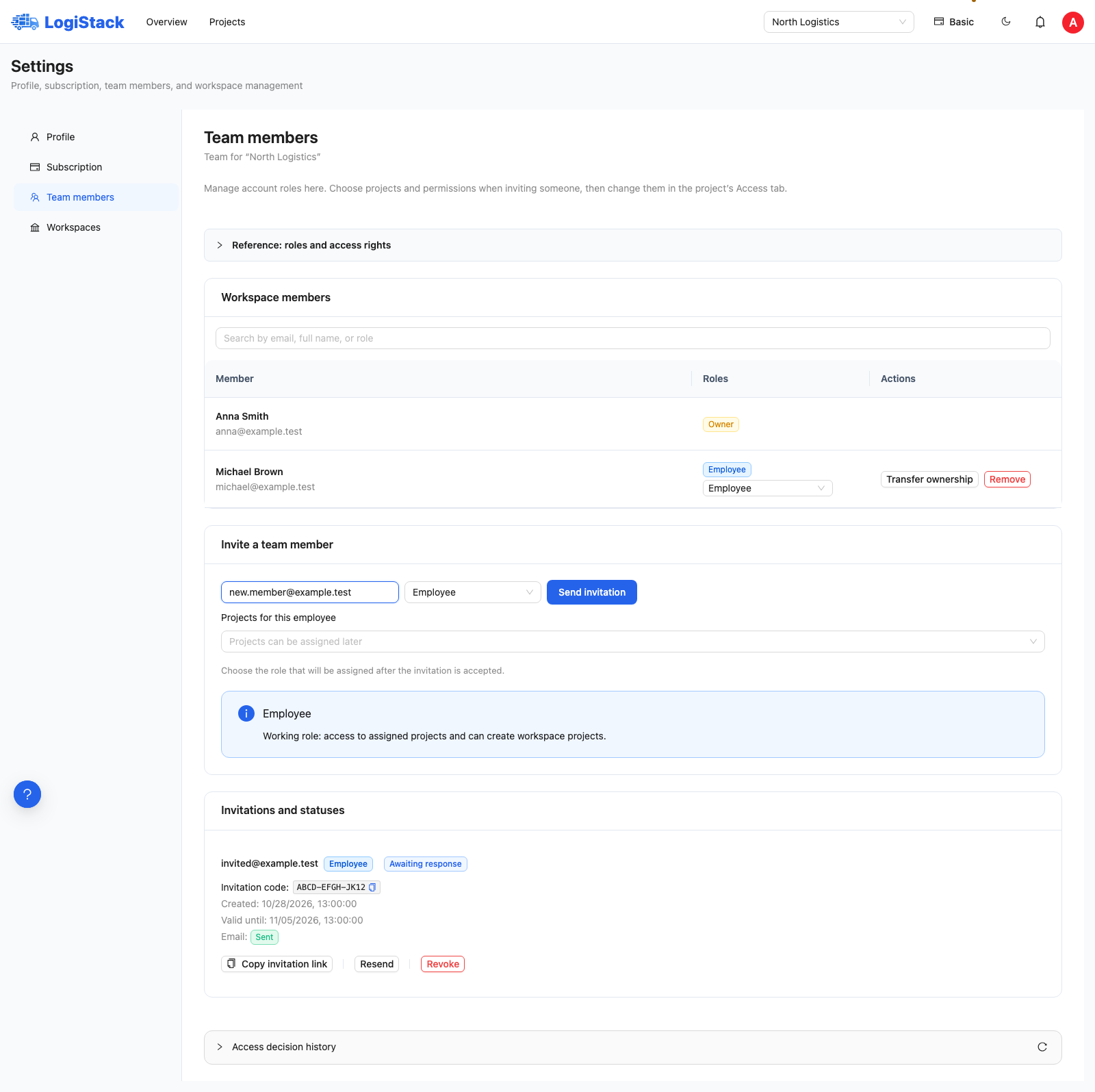
Invitation form: email, workspace role, assigned projects and role in each project. Example addresses are fictitious.
Choosing a role
| Workspace role | When to use it |
|---|---|
| Owner | Responsible for the workspace, manages the team and can transfer ownership. |
| Administrator | Manages workflows, invitations and payments, and has access to all projects. An owner can appoint administrators. |
| Employee | Works with assigned projects and can create workspace projects. |
| Viewer | Views assigned projects without editing or creating projects. |
Workspace and project roles are separate settings. A workspace Viewer cannot receive project editing rights. An employee's project permissions can later be changed on that project's Access tab.
If the invitation email did not arrive
Find the invitation under Invitations and statuses. This shows expiry, acceptance and delivery status. Sent confirms the email was sent, not that the employee joined.
Click Copy link and send it to that employee through a suitable channel. You may also share the displayed code. This is not a shared login: the invitation is addressed to one email. To send again, use Resend.
Frequently asked questions
The employee signed in but cannot see projects. Check the selected workspace and assigned projects. Joining the company does not grant access to every project; the list may be empty without assignments.
Access needs to be revoked. Before acceptance, click Revoke. If the colleague already joined, remove them from the employee list. This removes company access while retaining their personal profile.
I cannot appoint an administrator or remove another administrator. Ask the owner: those actions are restricted to that role. Available actions depend on both your role and the colleague's role.
No employee places are available. The owner should check team membership and subscription limits. Resending an invitation does not increase available places.
How an employee accepts an invitation
An existing user signs in with the recipient email and opens Inbox through the bell. Under Action required, they check the company and role, then accept or decline. Reading the message does not join the company automatically.
After acceptance, check the selected workspace and project assignments. If access is missing, check the recipient email, expiry and invitation status. Do not create a new company instead of joining the invited workspace. See Inbox and invitations.