How to use Overview and the project list
Overview is the main page after signing in. It helps you return to shipments, identify results needing attention and review the workspace's selected plans.
In this article
Choose the correct workspace and continue
- Check the company workspace name at the top of the application. Switch workspaces if necessary.
- Open Overview from the main menu.
- Choose a project under Continue working. Its card shows the selected plan, latest calculation or input preparation state.
- For a new shipment, click Create project in Overview or open Projects.
Only projects accessible to your profile are shown. An invited employee's empty overview may mean no projects have been assigned yet; ask an administrator to check access.
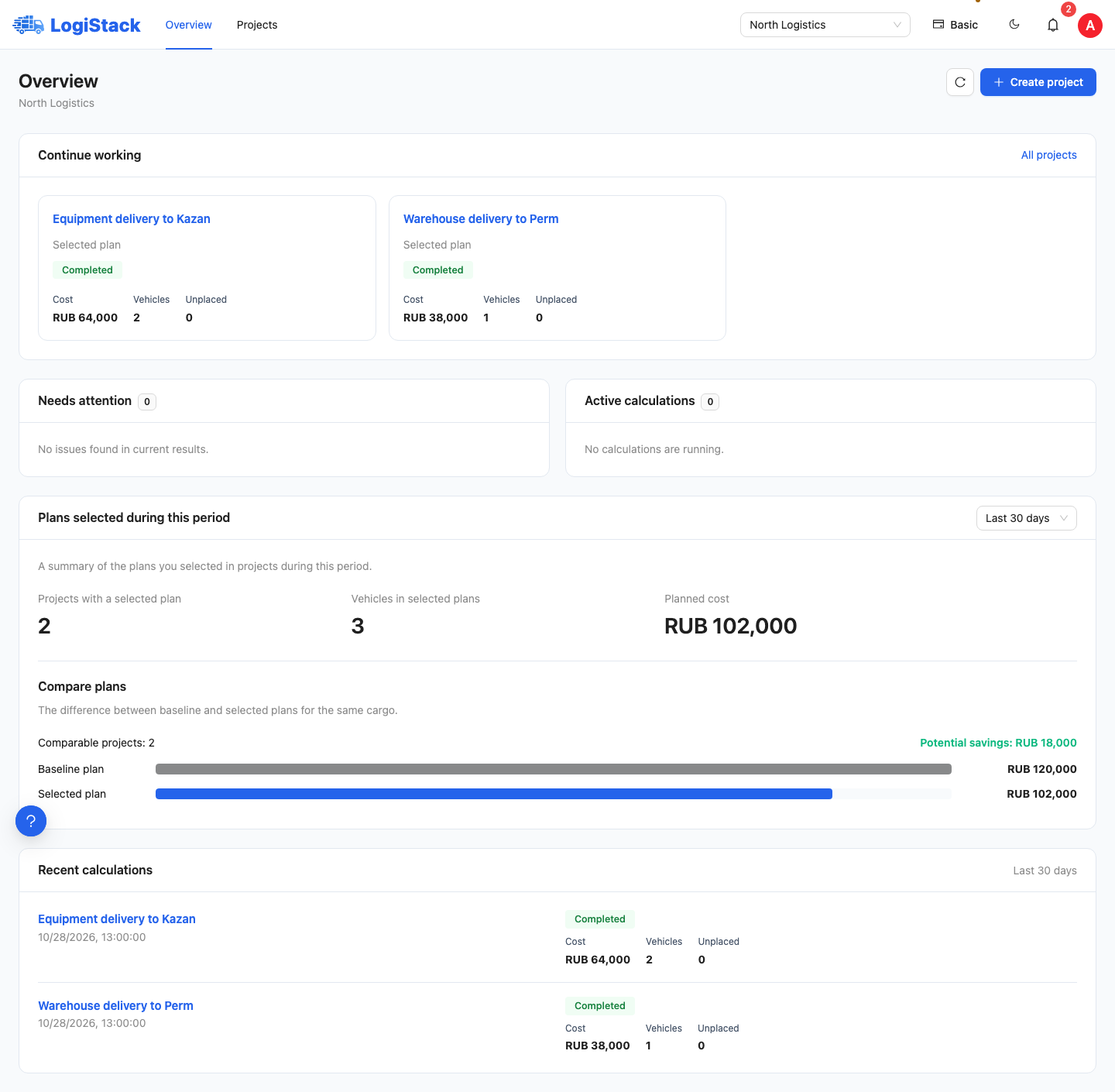
Overview: ongoing projects, results needing attention and the selected-plan summary. Educational data.
Needs attention and active calculations
Needs attention includes projects with failed, partial or unavailable current results. Open a project to read the specific reason. A partial plan can contain useful placements and remaining cargo without indicating a technical error.
Active calculations helps you find attempts in progress. Overview refreshes periodically while they run. Use Refresh for a manual check instead of starting a duplicate calculation.
Summary of plans selected during a period
- Choose 7, 30 or 90 days, or All time.
- Check the number of projects with a selected plan, vehicle count and planned cost.
- Read warnings about unknown costs, unavailable results and unplaced cargo.
The summary includes one selected plan per project selected during the specified period. It does not count every historical attempt as a separate shipment. Recent calculations below is based on calculation creation dates, so it may contain different entries.
Amounts in different currencies are shown separately without automatic currency conversion. Results with unknown prices are excluded from the total. A partial plan's cost covers the placed portion. If a selected result is unavailable, the total vehicle count may be unknown.
Understanding plan comparisons
The difference compares baseline and selected alternatives for the same task using your entered prices; it does not establish savings against market rates. Both plans need matching verified cargo and conditions, full placement, known costs and the same currency. An explanation appears for alternatives that cannot be compared.
To set baseline and selected plans, see the guide to choosing a result.
Searching and managing projects
Open Projects, enter part of a name and select a status filter. If a project is missing, reset filters and check the workspace and your access. On narrow screens, additional actions appear in the row menu.
Names, planned costs, vehicle counts and unplaced quantities help you find a shipment. Open the project and result before making a decision. Copying creates a separate shipment; another calculation stays within the current project. See repeating and copying.