How to remove cargo, unplaced pieces or an empty vehicle
“Remove” may mean hiding labels, taking cargo out of a loading arrangement, deleting pieces that will not be shipped, or deleting calculation history. Choose the intended action before confirming.
| Goal | Action | Outcome |
|---|---|---|
| Hide obstructing labels | Labels → Off | Only the display changes |
| Take cargo off a vehicle while retaining it in the task | Return to unplaced | The piece stays in the project but is not shipped in this version |
| Exclude unplaced pieces from the shipment | Remove unplaced cargo from project | The project cargo list changes |
| Remove a vehicle containing no cargo | Remove empty vehicle | A version with a changed fleet is created |
| Remove an old attempt from history | Delete a calculation in the list | The attempt itself is deleted, not an individual cargo item |
Return cargo to unplaced
- Open Correct plan, select a vehicle and select the pieces.
- Click Return to unplaced and check the quantity.
- Calculate, compare and accept the alternative if appropriate.
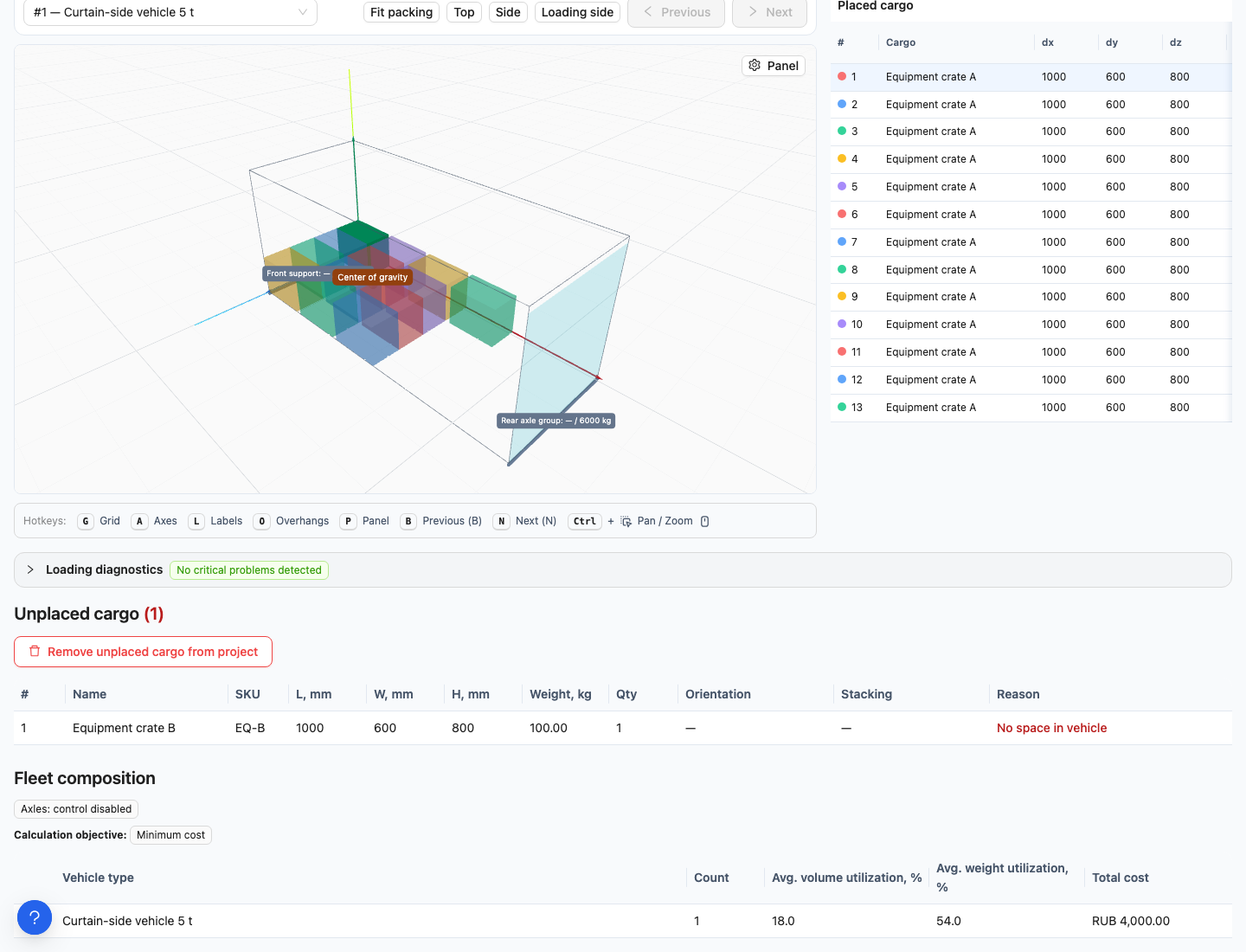
Remove unplaced cargo from project changes the shipment contents. Use a correction to take cargo out of the plan temporarily.
For example, a customer asks not to ship two crates yet. Returning them to unplaced cargo removes them from the plan but retains them in the project. Use Place unplaced cargo to put them back later.
Remove unshipped cargo from the project
- Under Unplaced cargo, click Remove unplaced cargo from project.
- Enter a quantity for each item in Remove, pcs. The form initially proposes the entire remainder; reduce quantities to remove only part. Leave 0 to retain an item.
- Click Preview removal.
- Check exact names, total quantity and weight. Use Change quantities to correct any error.
- Only after checking, click Confirm removal.
Placed pieces remain in the project. The earlier calculation and reports retain their previous contents: history is not rewritten. Run a new calculation for the revised shipment. Deletion may be blocked while another calculation runs or the project has changed; wait or obtain a current result.
Remove a vehicle
First empty the vehicle by transferring its cargo or returning it to unplaced cargo. Then select the vehicle and click Remove empty vehicle. Account for every piece before accepting the new version.
Can I remove only one of ten identical crates? Unplaced-cargo removal takes a quantity of unplaced instances, rather than necessarily deleting an entire row. Placed instances are protected from this action.
Does copying unplaced cargo remove it here? No. Creating a new project from unplaced cargo and removing it from the original shipment are separate actions.
Before deleting a calculation: deleting the original calculation also deletes its correction versions. Use rollback, rather than deletion, to return to an earlier plan.