How to import cargo from a spreadsheet without duplicates
Import is useful when your cargo is already listed in a spreadsheet. It adds new rows to the project. Uploading the same file again does not update existing cargo by name or SKU: it may create duplicates and inflate quantities.
In this article
Your first import
- Open the Cargo tab and the three-dot menu next to Add cargo.
- Choose Download template. In the current interface, this downloads a CSV template.
- Keep the CSV template in CSV format when saving and uploading it. Open it in a spreadsheet editor, retain the headers and replace the example with your cargo. Remove the example row if it is not part of the shipment.
- For CSV, choose Import cargo (CSV). For XLSX, start from Export cargo (XLSX), preserve its column order and use Import cargo (XLSX). Do not simply save the CSV template as XLSX: optional fields have different column orders in these formats.
- After importing, check names, dimensions, weight per piece, quantities and stacking rules. Check several rows in the middle as well as the first row.
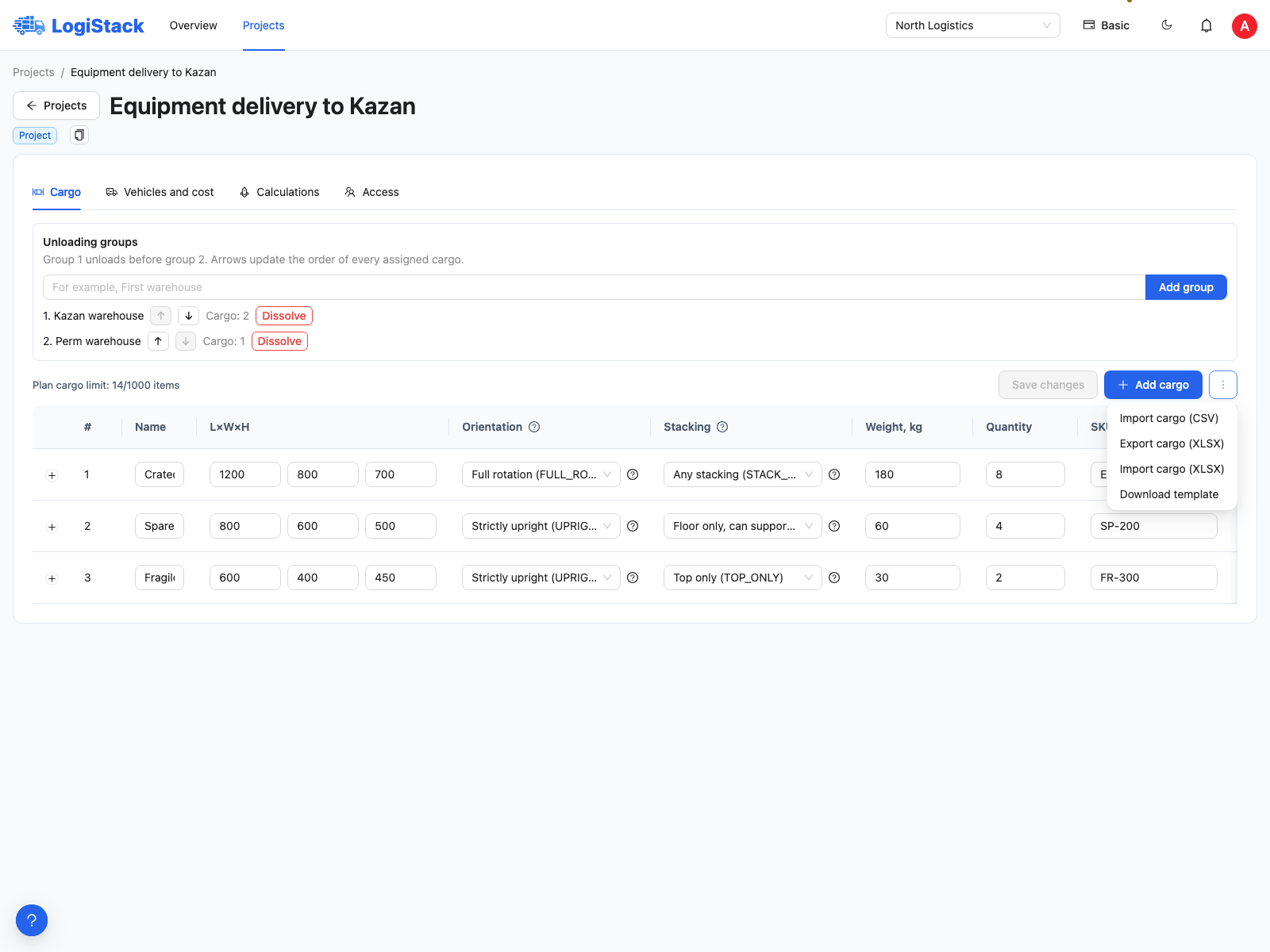
The import menu has separate CSV and XLSX commands. Its downloadable template is CSV.
Required template columns
| Header | Contents | Example |
|---|---|---|
| name | Cargo-piece name | Crate 1 |
| length_mm | Length in millimetres | 1200 |
| width_mm | Width in millimetres | 800 |
| height_mm | Height in millimetres | 900 |
| weight_kg | Weight per piece in kilograms | 95 |
| quantity | Number of identical pieces | 12 |
Technical headers identify columns. Do not translate them or add units to numeric cells. Use comma-separated CSV, as in the downloaded template; a semicolon-separated file may be read as one column.
Correcting data after import
If only a few rows are wrong, edit them directly in the project and click Save changes. Do not upload the entire file again to make these edits. To save the current list locally, use Export cargo (XLSX). Importing an exported file also adds rows rather than replacing existing ones.
Common problems
- All values appeared in one column. Check the CSV delimiter and whether headers match the template.
- The quantity doubled. The file may have been imported twice. Check the items before deleting duplicates.
- Required columns are missing. Download a fresh template and transfer your values into it.
- Weights or dimensions differ from expectations. Remove “kg” and “mm” from numeric cells, and check decimal separators and units.
- Import is unavailable. Check editing rights and the explanation beside the command.
If item deletion is blocked, do not set its dimensions to zero. Read the explanation and use the workflow provided to prepare another version of the shipment.
If you cannot export a file
Cargo and vehicle export may be unavailable under your subscription plan. Check the command's tooltip and the selected workspace's subscription. Import changes the project's inputs and requires editing rights; an unavailable export does not by itself mean the original file should be imported again.