How to compare versions, accept a change and return to an earlier plan
A correction is saved as a separate version, allowing review before application and a return to an earlier state. Distinguish an alternative ready for comparison, an accepted version and the project's selected plan.
In this article
Review before accepting
- Wait for Ready to compare, then click Compare.
- Open each affected vehicle under Vehicle to compare.
- Compare Before correction and After correction. The grey outline shows the platform, the dashed outline the allowed overhang, and changed cargo is highlighted.
- Check piece counts, unplaced cargo, fleet and cost. If a vehicle was removed, confirm that all its cargo is accounted for in the new plan.
- Read the mandatory validation result; for AI, also check whether preferences were fulfilled.
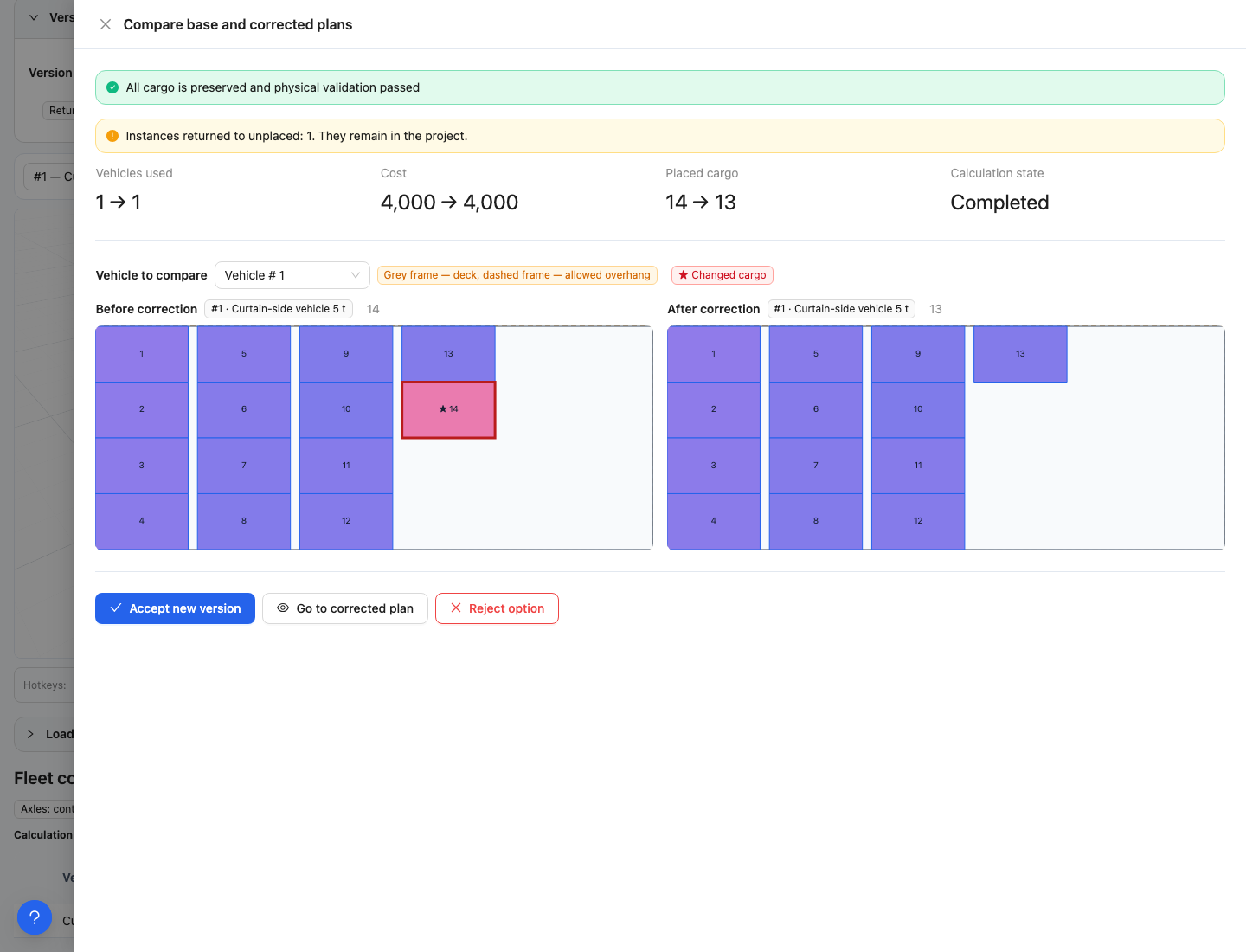
Comparison covers more than positions: in this example, the placed count falls from 14 to 13.
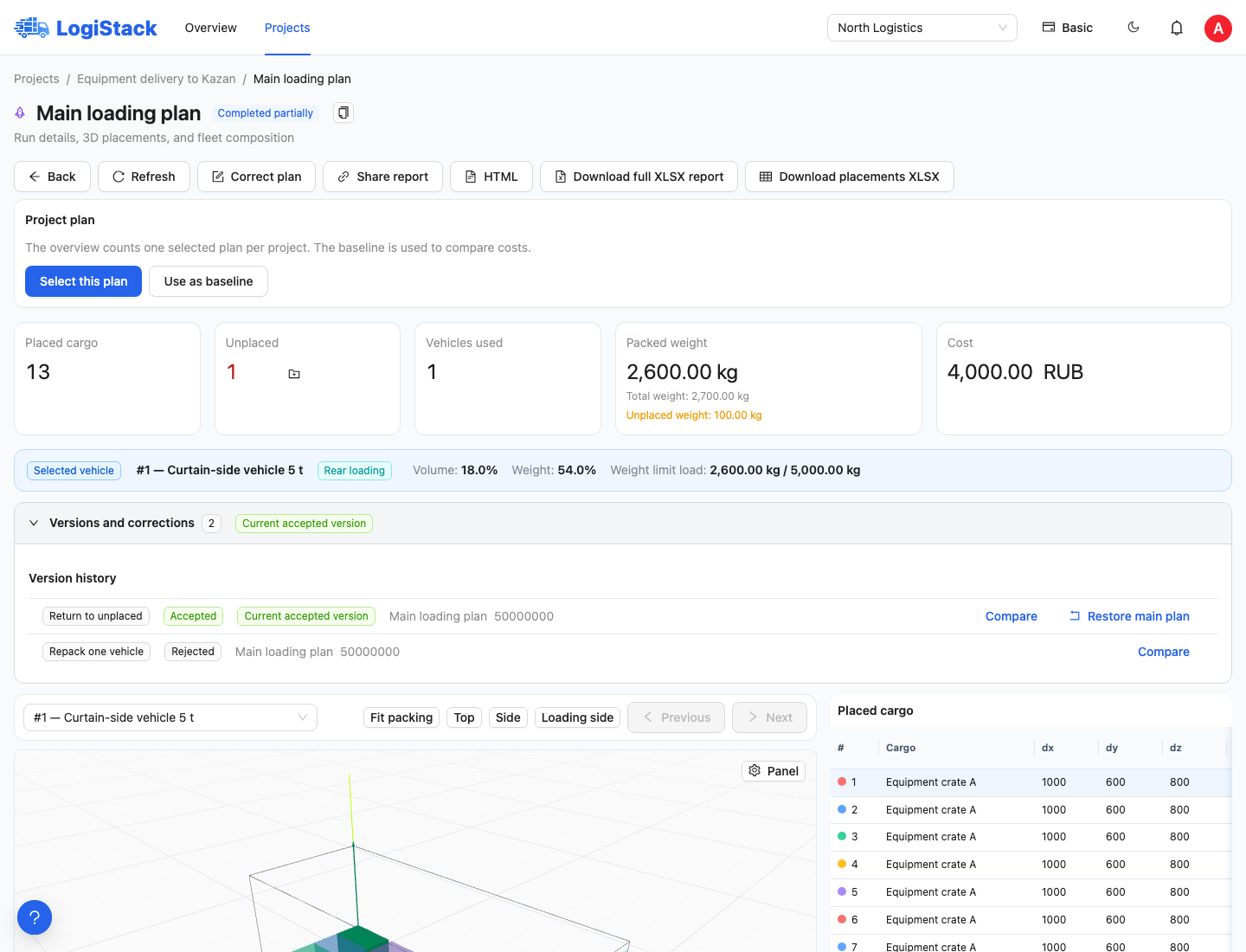
Alternative history lets you inspect an accepted version and restore the original plan.
Then click Accept new version or Reject option. Acceptance confirms you want to use the change. Use Go to corrected plan to inspect the finished result in more detail.
Understanding version states
| State | Meaning |
|---|---|
| Queued, Recalculating | The result is still being prepared |
| Ready to compare | An alternative is available and awaits your decision |
| No feasible alternative | The requested change could not be made under the specified conditions |
| Accepted | The change is confirmed |
| Rejected | You declined the alternative |
| Superseded | This is no longer the current alternative |
Returning to an earlier plan
Open Versions and corrections / Version history. Undo last change is available for the current accepted correction; Restore main plan is available in the history. It opens the plan on which the change was based without deleting history.
If Repeat change is available, it returns a saved alternative for comparison. Review its conditions before accepting again. These actions operate on saved versions, not on arbitrary changes to dimensions or quantities in the project.
Closing a panel does not stop a calculation
Closing the panel does not stop a running local calculation. Use Cancel calculation and confirm to stop it. If you leave the page, you can find the result in history when you return.
Effects on allowances and reports
A new local calculation uses one correction. Viewing, comparing, accepting, rejecting and rolling back a finished version do not consume another attempt. Rejecting an alternative does not undo the search effort already performed.
After acceptance or rollback, check the project's selected plan. To share a report, open the intended version and generate or download its report. Previously saved files do not update with later actions.
Next: sharing the finished plan.
If the calculation is interrupted or the service fails: interruption and certain service errors return the attempt to the allowance. Clarification requests and unavailable AI also do not consume a completed correction. A finished search with no feasible placement counts as an attempt. Check the current balance in the correction panel.