What to do if you cannot sign in or need help
Start with the screen where the problem occurred. Sign-in, invitation, project-access and payment errors need different actions. The checks below help retain your existing profile and avoid unnecessary duplicate accounts.
In this article
I forgot my password
- On the sign-in page click Recover next to Forgot password?
- Enter your profile email and click Send code.
- Enter and confirm the six-digit code from the email, or follow the link in that same email instead.
- Set a password of at least eight characters, repeat and save it. Return to sign-in and use your new password.
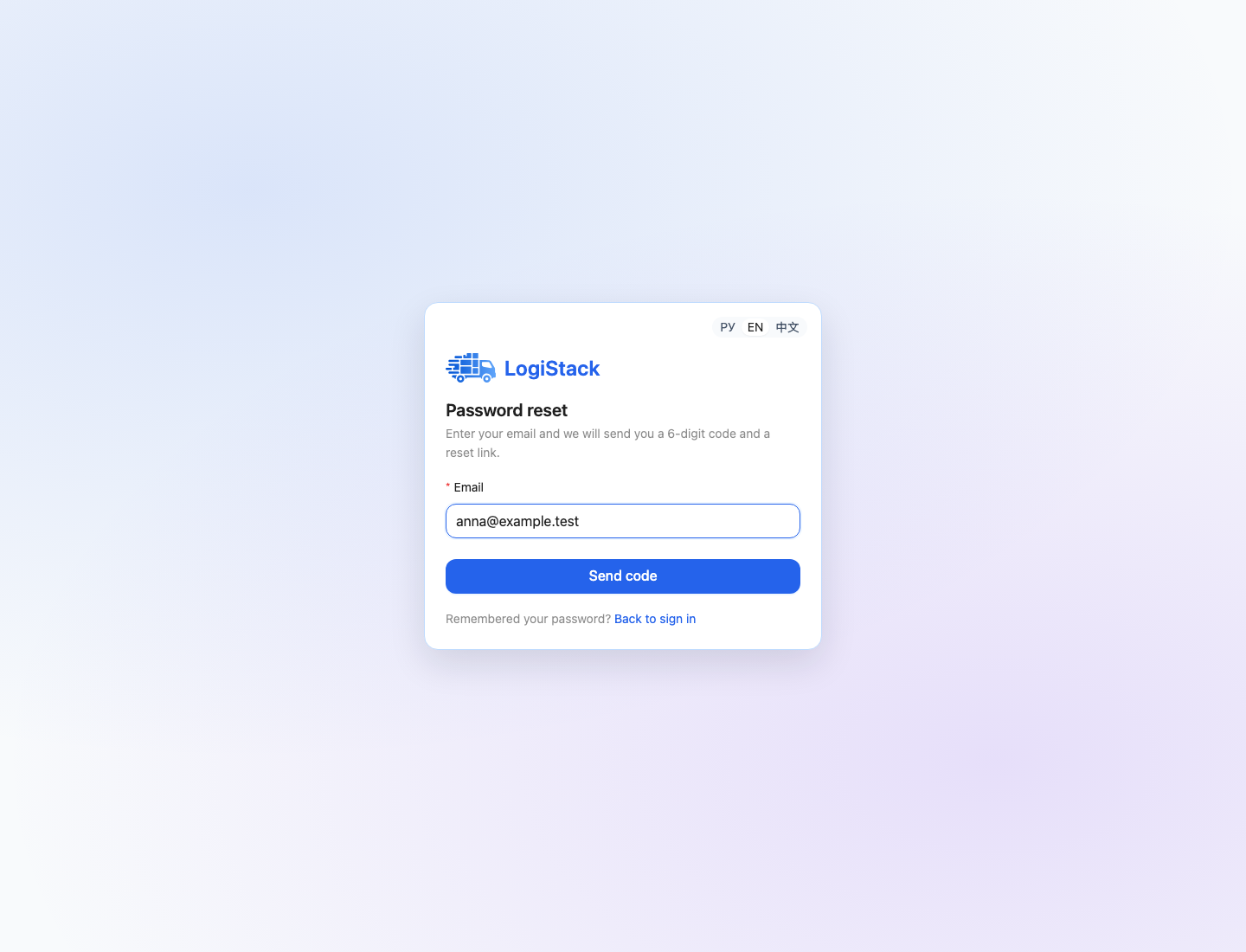
Use your profile email for recovery. The screenshot does not display emails or codes.
Check Spam and the address entered. If you requested another email, use its latest code. A sent confirmation does not prove a profile exists for that address: check which email you registered with.
An invitation does not open
- Invitation not found. Copy the complete code or link without extra spaces. Ask the administrator to check the current invitation.
- Invitation expired. Request a new invitation. Re-entering an old code does not extend its validity.
- Invitation is for another email. Sign in as the recipient. If addressed incorrectly, an administrator must invite the correct email.
- Already used or revoked. Check My workspaces: the company may already be available. Otherwise, confirm the status with its administrator.
- Invitation updated. Open the latest emailed link.
Signed in but unable to see a project
Check the selected workspace and profile email. Then ask the administrator to open Access for the required project and verify your role. Employees and viewers see assigned projects; company membership does not grant access to all its data.
Contacting support
Open Support and click New ticket. Continue an existing conversation for the same issue. If you cannot sign in, email support@logistack.ru. Include your profile email, workspace name, action, expected outcome and actual message. For calculations, include a project or result link; for payments, include the date, amount and payment status shown in the application.
A screenshot of the affected screen is useful. Hide unnecessary customer information before sending. Passwords, full card numbers, banking codes and sign-in codes are not needed to explain the issue. For recurring errors, include the steps and time of occurrence.
Help inside the application
Click the round Help button at the bottom left. Getting started launches the guided tour, Knowledge base opens this guide and Support opens your tickets. See the detailed support-ticket instructions.
Find new invitations and ticket-related messages in Inbox. If loading fails, use Refresh or Retry on the affected screen. Include the time and sequence of actions in a support ticket if the problem recurs.