How to manage a workspace and subscription
A subscription belongs to the selected company workspace. Employees share its project and calculation allowances. Check remaining capacity using Plan at the top of the application; open details and payments through Settings → Subscription.
In this article
Understanding the counters
- Projects created — usage of the project-creation allowance, not simply the number of rows currently visible in the project list.
- Calculations per allowance period — new full calculations. Another full calculation within an existing project also counts.
- Corrections per original calculation — a separate allowance for new local recalculations of a finished plan, shared by the original result and its corrected versions.
Opening results, viewing history, accepting a saved correction or restoring a saved version does not start another local calculation. Deleting history does not refund used corrections. Check the balance beside the opened result's corrections.
The dates Valid until and Allowance reset answer different questions: the first is when access expires; the second is when project and full-calculation capacity renews. Use the dates shown, which are not necessarily the first day of a calendar month.
Pay for or renew a plan
- Check the workspace, choose a plan and an available billing period. For the current plan, click Renew.
- In the form, check the amount and dates for the new period after payment.
- Decide whether to enable automatic renewal. With Save my card and enable auto-renewal enabled, payment sets up a subscription with subsequent charges. Turn it off for a one-off payment; the button changes to Pay online.
- Read the terms, confirm your agreement and continue to the payment page. Return to LogiStack afterwards and wait for confirmation.
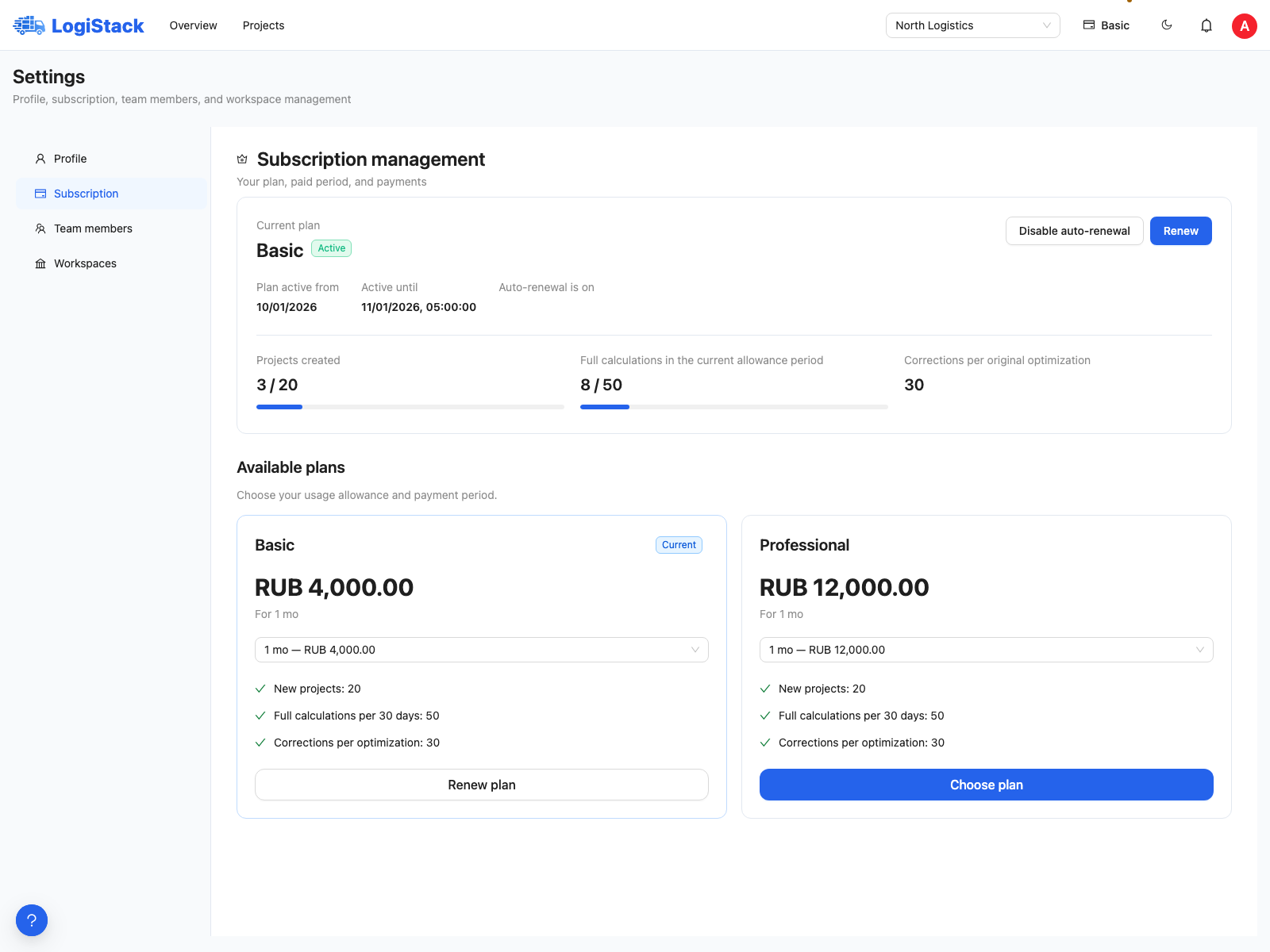
Subscription validity, allowance reset date and remaining actions. These are example terms; check your current workspace's actual values.
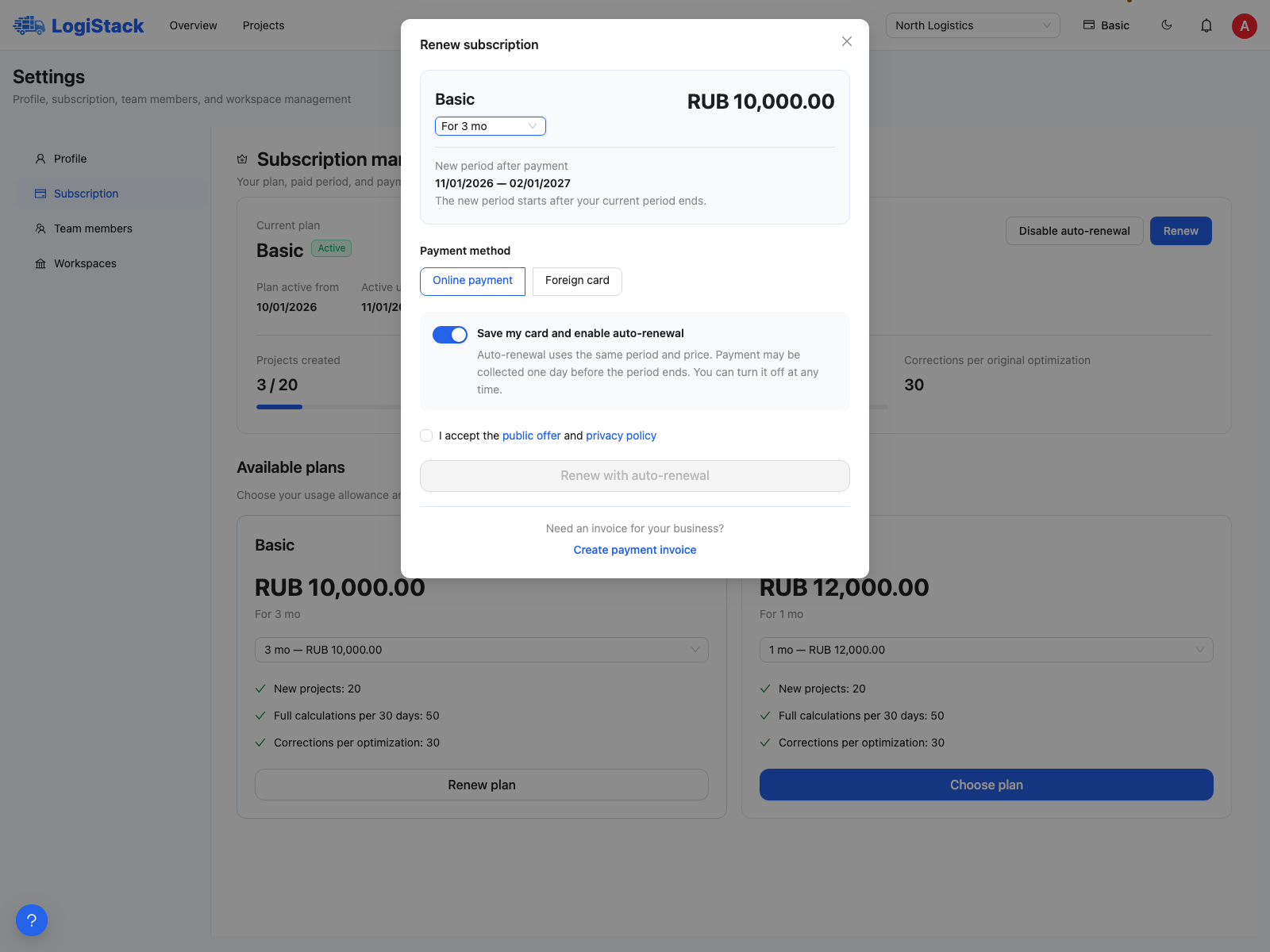
Part of the plan-change form: check the amount, period and warning about replacing the current plan. The price is illustrative.
For a foreign-issued card, choose that payment method. It supports one-off payments only; supported cards are shown on the payment page.
Before making a payment
Can I renew early without losing days? Renewing the same active paid plan adds a new period after the current one without immediately resetting used allowances. Temporary link access and first payments follow different rules; check the dates and warning in the form.
What happens if I choose another plan? After payment confirmation, the new plan replaces the current one. Remaining days are not carried over: check the warning, amount and dates before paying.
How do I stop automatic charges? Click Disable auto-renewal in the subscription and confirm. Access continues until the paid period ends. Automatic renewal may charge the card a day before expiry, so do not wait until the last moment to disable it.
My card was charged but the plan has not updated. Click Check payment. If confirmation is delayed, contact support with the date and amount. Do not pay again solely because confirmation is taking time.
Why are payment buttons unavailable? Owners and administrators manage financial settings. Employees should contact them.
Access by registration link and first payment
A plan received through a special registration link shows Link access, its expiry date and no automatic charge. This is temporary access to the plan's features, not a paid subscription with a saved card.
To continue, click Pay for plan and choose an available period. After the first payment is confirmed, the full selected period begins and project and full-calculation allowances reset. Remaining temporary-access days are not added. If access has expired, use the purchase terms shown.
Renewing an active paid plan, switching plans and making a first purchase have different dates and allowance-reset rules. Check the server-calculated terms in the form immediately before payment. Refresh expired terms rather than calculating a promised period yourself from calendar dates.
Paying by invoice for a company or sole proprietor
If available for the selected plan and workspace, the payment form can create a bank-transfer invoice. Enter buyer details and download the PDF. This method does not enable auto-renewal; access dates are confirmed once payment is received. See creating and paying an invoice.
Besides projects, full calculations and corrections, a plan may limit concurrent calculations, team members, vehicle types and cargo rows. Deleting history should not be treated as a way to reclaim allowance. Check the balance and reset date for the current workspace.