How to read a 3D plan and simplify the view
The result page displays one selected vehicle. Placed cargo shows that vehicle's pieces. Changing vehicles updates both the scene and cargo list, so check the vehicle number and name before reviewing or editing a plan.
In this article
Find the cargo you need
- Select a vehicle under Show vehicle, or use Previous and Next.
- Hover over a piece in the scene or its table row to highlight the corresponding piece.
- Click a piece or row to select it and read its parameters.
- Check rotated dimensions, weight, position and Load order. Identical item names do not identify individual cargo pieces.
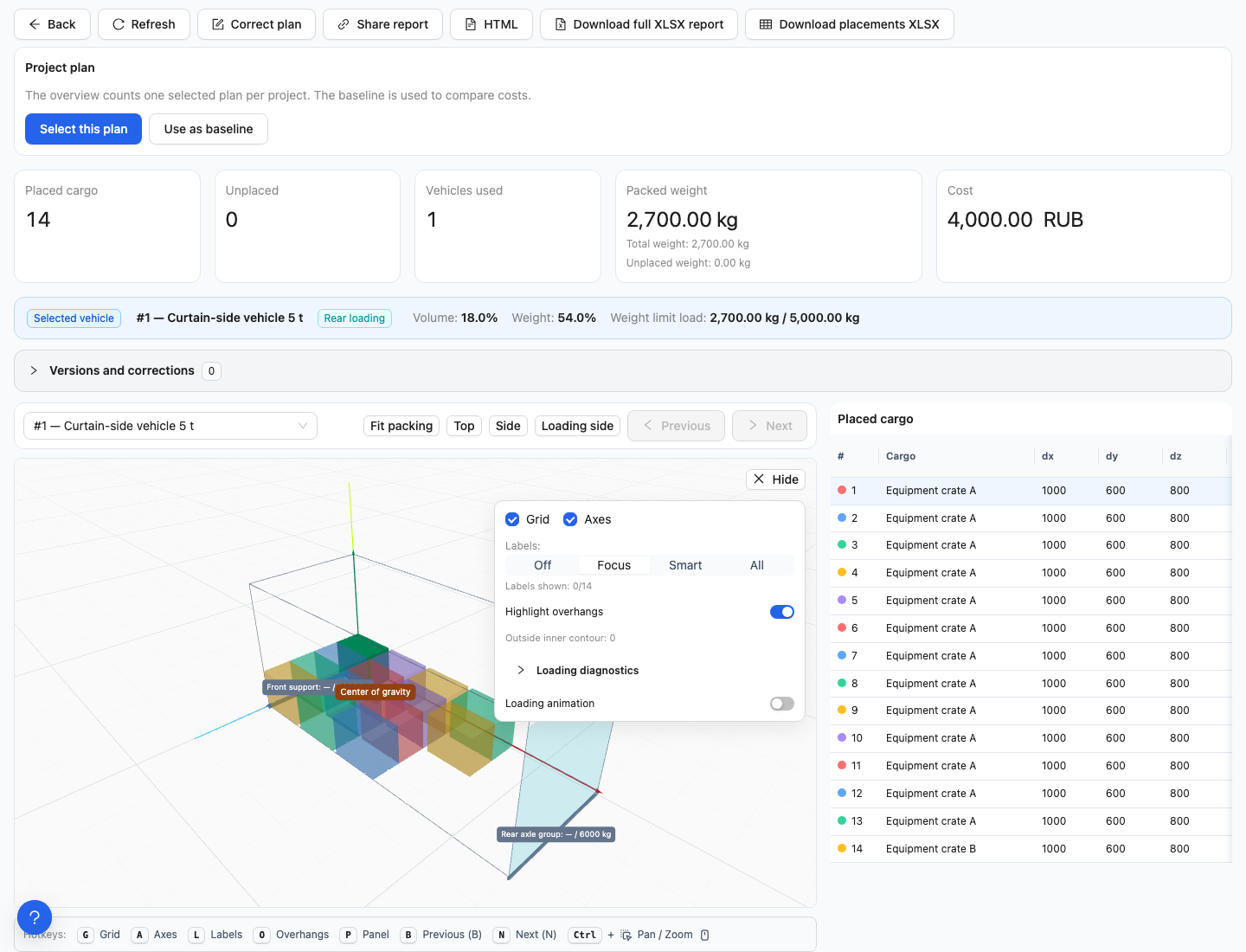
Panel opens the grid, coordinate axes, labels and animation controls. The table on the right is linked to cargo selection in the scene.
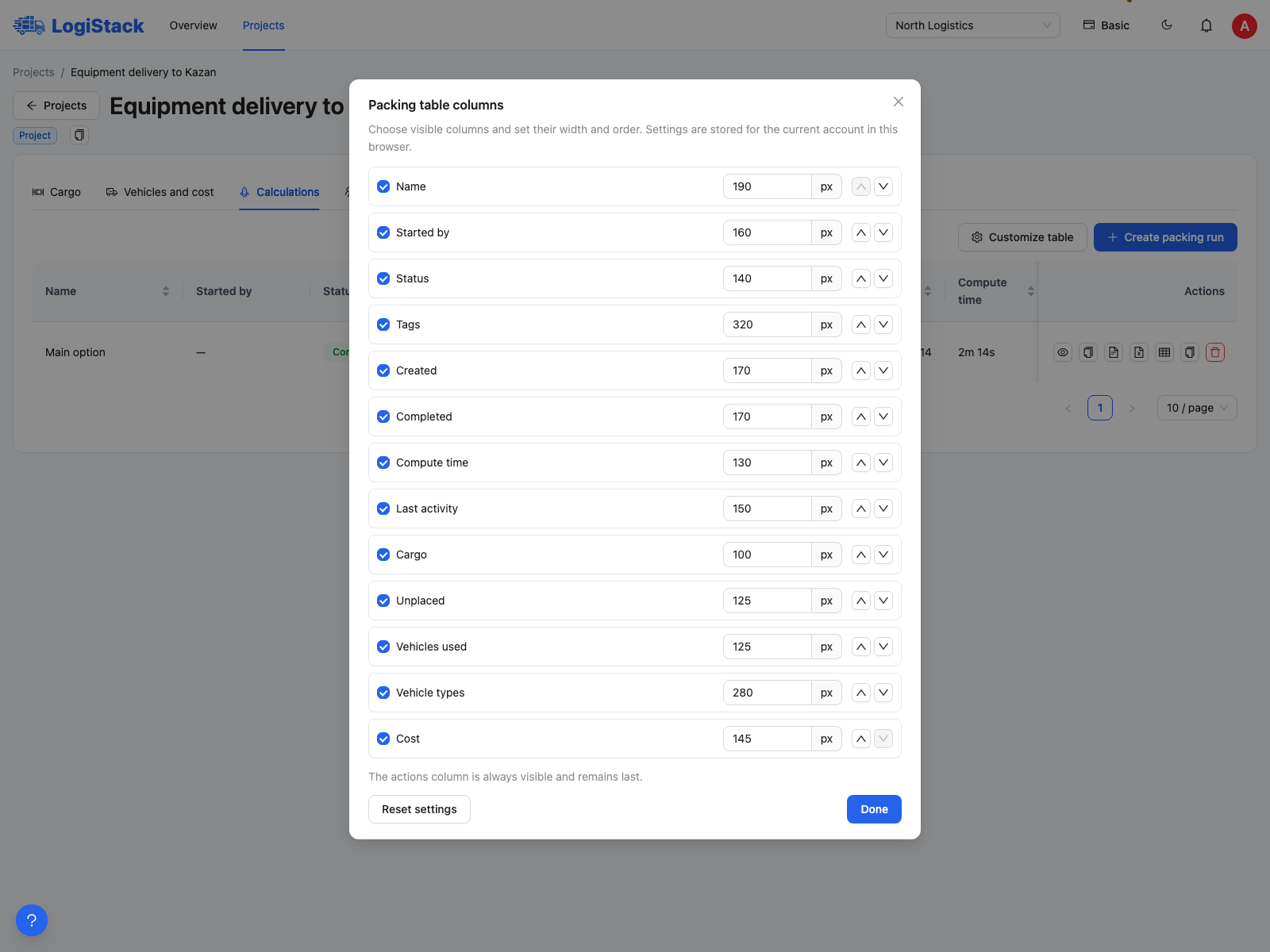
You can hide unnecessary columns in the calculation list without removing calculation data.
Reducing visual clutter
| Setting | When to use it |
|---|---|
| Labels → Off | Hide labels to inspect the arrangement |
| Focus | Read details while hovering over a specific piece |
| Smart | Display short numbers and highlight details for the piece of interest |
| All | Display detailed labels; these can obscure a dense arrangement |
| Hide | Collapse the scene controls; reopen them with Panel |
| Grid / Axes | Turn off the grid / coordinate directions |
Axes in the scene means coordinate directions, not wheel-axle validation. Display controls do not change the result or remove shipment cargo. Overhang highlighting marks extensions beyond the internal body boundary; a permitted overhang is not automatically an error.
Step-by-step loading sequence
Enable Loading animation and move the slider from the beginning to the final step. At step 0 the vehicle is empty, representing the start of loading. Later steps reveal pieces in their loading order. Disable animation to display the complete plan again.
Loading order is the sequence of placing pieces into the vehicle. An unloading group or stop determines delivery order along the route. These are different sequences; check both when there are multiple recipients.
Using diagnostic overlays selectively
Use Loading diagnostics for one task at a time: Support graph shows what supports what; Contact area shows where support occurs; Centre of gravity shows weight distribution; Door plane shows the opening. Disable the layers after checking them if needed.
Cargo appears in the table but not the scene? Check the selected vehicle and animation step. If animation is off and data has loaded but the scene remains empty, refresh the page and save the calculation ID for support.
To remove actual pieces from a plan, use cargo and unplaced-cargo actions, rather than display settings.
If some geometry is not displayed
The scene may warn that some placements lack dimensions or coordinates. Such pieces are not drawn with invented dimensions. If vehicle dimensions are unknown, its outline may also be hidden. Visually empty space therefore does not confirm spare capacity.
Check the message, table and inputs for the opened result. If refreshing does not restore the data, save the calculation ID and create a support ticket. Do not accept a correction based only on an incomplete scene.