Unloading groups: setting and changing the order
Unloading groups specify which pieces must be unloaded first. They define delivery order, not route planning. Addresses, distances and travel times are not calculated here.
In this article
Create and assign groups
- Open the Cargo. Find the Unloading groups.
- Enter a clear name, such as “First warehouse”, and click Add group.
- Add the remaining groups. Group 1 unloads before group 2.
- Expand a cargo row and choose Unloading group. When adding new cargo, this field is under advanced handling.
- Assign groups to every piece with a required unloading order and click Save changes.
- Use ↑ and ↓ beside a group to reorder it. Then start a new calculation.
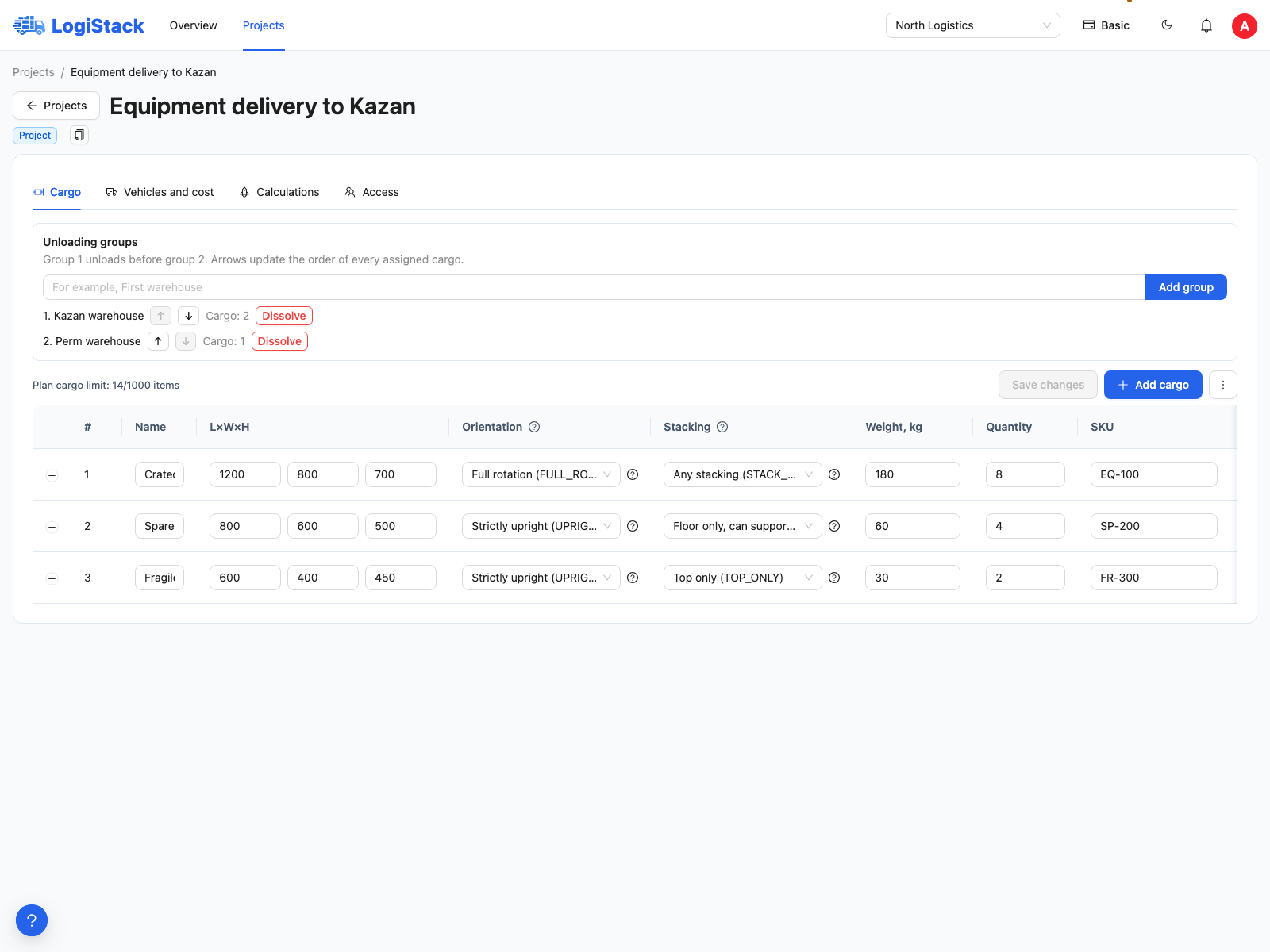
Create groups in order, then assign them in each cargo row's advanced parameters.
How groups affect placement
Cargo for an earlier stop must remain accessible in the specified order. Rear loading requires rear access, side loading requires side access, and crane unloading requires access from above. The system also checks support for cargo remaining after unloading. Maximum density alone cannot ensure the required sequence.
With axle control enabled, changes in load as known groups are unloaded are also checked. Removing some cargo can change support-load distribution even though total weight decreases.
Example
Four crates go to the first warehouse and six to the second. Create two groups and assign the corresponding rows. If one row contains ten identical pieces for different stops, split it into quantities 4 and 6. Each row has one assigned group.
What No group means
Such cargo has no explicit stop number, so its stop sequence is unspecified and must not be assumed verified. No group does not mean “unload last”. Create an explicit final group for the last stop.
Removing an unnecessary group
Disband removes the group and clears its cargo assignments without deleting cargo. For an empty group, the action is Delete. Check row and piece counts in the confirmation window. The order of other groups is preserved.
If the action is unavailable, save cargo edits and wait for active project calculations to finish. Changing groups does not rearrange saved plans; calculate again for the new conditions.
Frequently asked questions
Why did assigning groups increase the vehicle count? Accessible, stable unloading may require extra space. Can I use an address as a group name? Yes, as a recognisable label; the address itself is not used to calculate a route.