How to modify a finished plan
Use corrections when the shipment inputs are correct but its arrangement needs refinement: moving crates to another vehicle, placing a piece on the floor or lowering a stack. Change dimensions, prices or the shipment itself in the project, then run a new full calculation.
In this article
Choose the appropriate action
- Open a finished result and click Correct plan.
- Select a vehicle. For actions on individual pieces, select their checkboxes in Placed cargo.
- Choose an action and set its conditions in the panel that opens.
- Click Create and calculate. Wait for Ready to compare.
- Click Compare, review the alternative and accept or reject it.
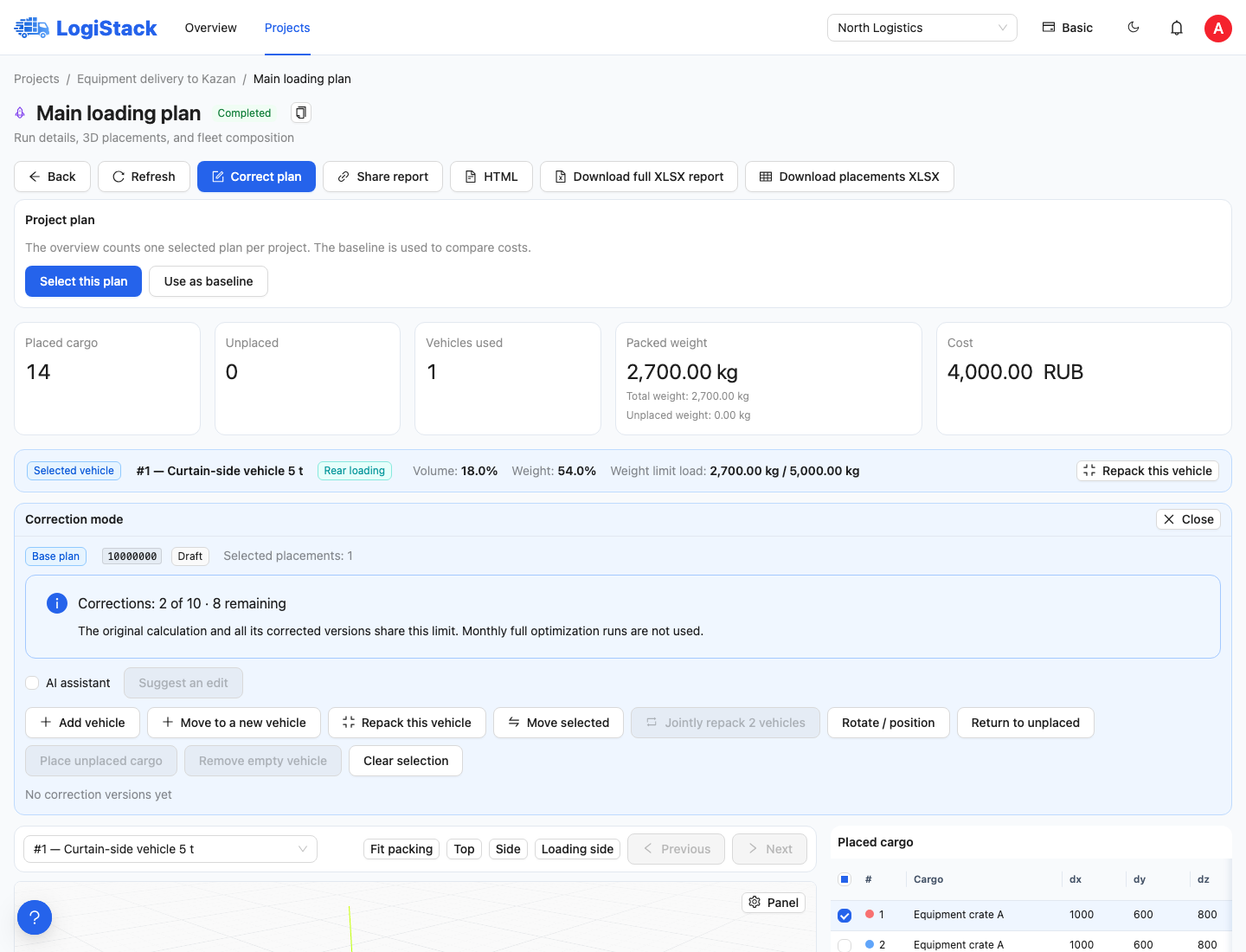
Correction mode: selected pieces, actions and the shared correction allowance for the original calculation.
| Action | When to use it |
|---|---|
| Repack this vehicle | Find another arrangement within one vehicle |
| Move selected | Transfer selected pieces to another existing vehicle |
| Jointly repack 2 vehicles | Redistribute cargo between a pair of vehicles |
| Move to new vehicle | Add a vehicle for the selected pieces |
| Rotate / move | Set the exact position of one instance |
| Return to unplaced / Place unplaced cargo | Temporarily remove pieces from the plan or put them back into a vehicle |
Selecting several pieces
Use the checkboxes at the left of the table. Clicking a row or a piece in the scene selects one instance and may replace previous selection. Check Selected pieces. Changing vehicles clears selection; check it again before acting.
Constraints still apply after changes
Corrections retain rotation restrictions, vehicle limits and stacking rules. Pinning cargo, requiring everything on the floor and prohibiting overhang simultaneously may leave no feasible solution. Relax only preferences you can actually compromise on.
The original result is preserved. The alternative is applied after Accept new version; starting a correction does not replace the plan automatically.
Frequently asked questions
Why does Project changed appear? The saved result uses older inputs. Open the project and run a new calculation, then correct the current plan.
What is charged against the allowance? Each new local calculation uses one correction from the allowance shared by the original calculation and all its versions. Viewing, comparing and deciding on a finished alternative does not consume another correction.
Next: moving and pinning cargo, AI commands.
If the calculation is interrupted or the service fails: interruption and certain service errors return the attempt to the allowance. Clarification requests and unavailable AI also do not consume a completed correction. A finished search with no feasible placement counts as an attempt. Check the current balance in the correction panel.