How to change your profile, password, time zone and theme
Personal settings apply to your profile. To edit your details, open Settings → Profile. Before saving, check that the email field shows your address.
In this article
Name and phone number
- In the Full name field, enter the name colleagues should see.
- Check phone number. You may use +, spaces, brackets or hyphens. The number itself must contain 10–15 digits.
- Click Save changes and wait for confirmation that the update succeeded.
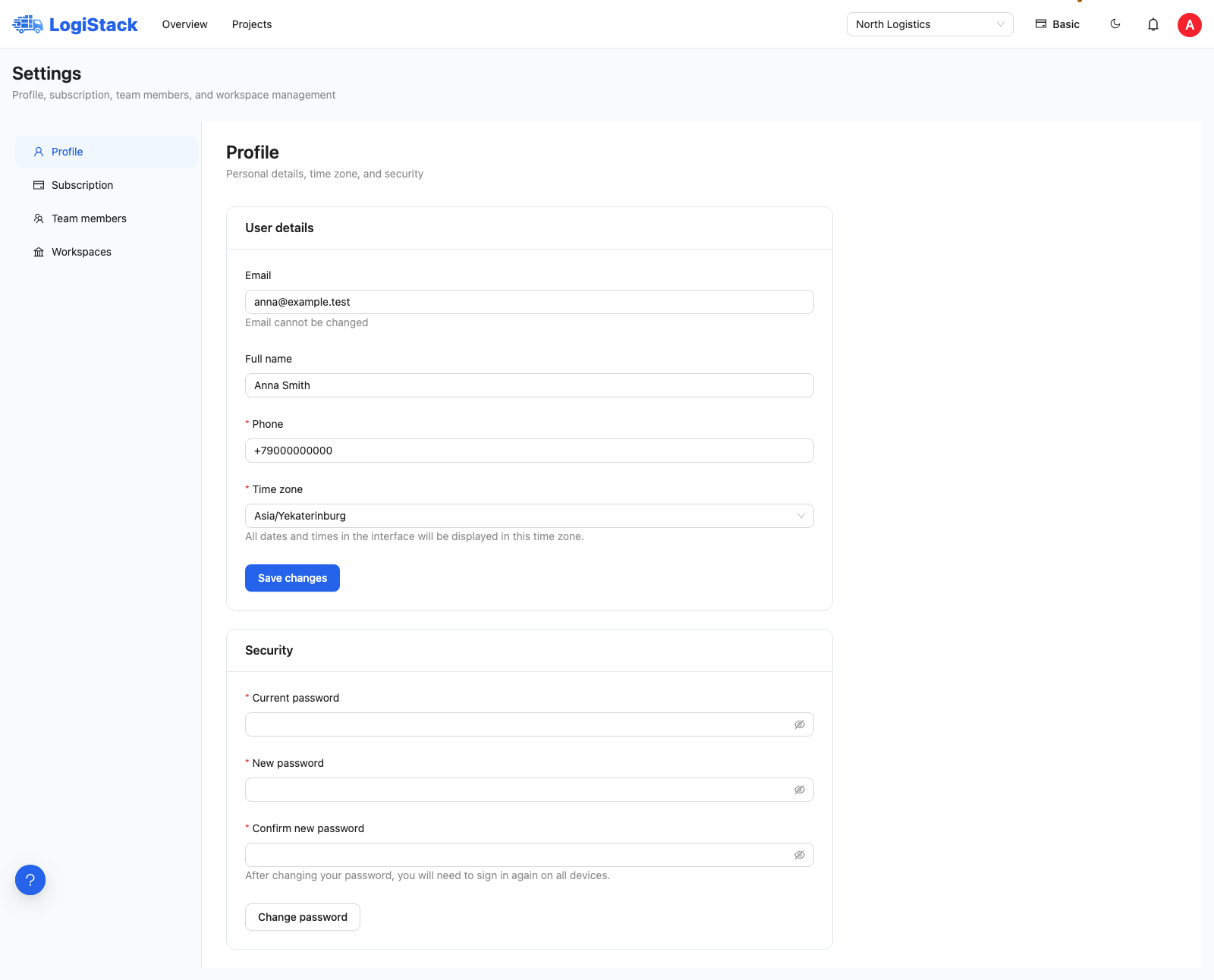
Your profile includes name, phone and time zone. The theme control is in the top bar.
An existing phone number cannot be cleared and saved blank. If validation fails, check the digit count and remove letters. Email is displayed for checking but cannot be edited in this form. Contact support to change the sign-in address.
Time zone
Choose your time zone in the corresponding field and save. The interface displays dates and times in that zone, which is useful for colleagues working across regions.
Why does the time differ from my computer or a colleague's? Compare time-zone settings first. The same instant can appear as different local times. Changing time zones changes date display, not calculation order or the duration of a paid period.
Changing your password
- Under Security enter your current password.
- Enter a new password of at least eight characters and repeat it in the confirmation field.
- Click Change password. After saving, sign in with the new password.
Changing your password requires signing in again on all devices. If you forgot the current password, use password recovery on the sign-in page.
Light and dark themes
Click the moon or sun icon at the top of the application. The theme changes immediately without separate saving. It is remembered for your profile in this browser.
Why is the light theme selected on another computer? Theme choice is stored in the browser. You may need to select it again on another device, after clearing site data or in a private window.
An error appeared after Save. Do not assume changes were saved. Correct the indicated field and retry. If the entire profile fails to load, click Refresh and check the connection.
Interface language
- On a desktop, open the profile menu at the top right; on a phone, use the main menu.
- Under Language, choose Russian, English or 中文. The Chinese version uses Simplified Chinese.
- The interface switches immediately without separately saving your profile.
Sign-in and registration pages also have a language selector. Your choice is saved in the browser. Another device, cleared site data or private browsing may use a different language. A link specifying a language can open that version.
This setting changes system labels and interface messages. User-entered names and conversations retain their original language. Check downloaded file contents and the external knowledge base language separately.